
How to Automate a YouTube Channel With Claude: The 12-Job Pipeline
October 22, 2026 · 9 min read · by Jan Oršula
Claude can run most of a YouTube channel. It can study what is already working in your niche, write the script, voice and animate the video (through Claude Code), design the thumbnail, write the title, description and chapters, cut the Short, and fill in every upload so it goes live on schedule. What stays yours is small but important: choosing the idea, approving each video, and dragging the files in. That is how 131 videos have been scheduled or published on our own channel.
This guide is that pipeline, job by job. It starts where most "AI YouTube" tutorials stop: not at the finished MP4, but at a channel that publishes every day without anyone opening an editor.
What "running a channel with Claude" actually covers
A video is not one task, and that is where most automation attempts fall apart. Ask an AI for "a YouTube video" and you get a script. The channel still needs a voice, scenes, a thumbnail, a title someone will click, a description with chapters, a Short to feed the long video, a publish time, and someone to pin the comment once it is live. Miss any of those and the video underperforms, however good the script.
So we split the work into twelve jobs and gave each one to whoever does it best:
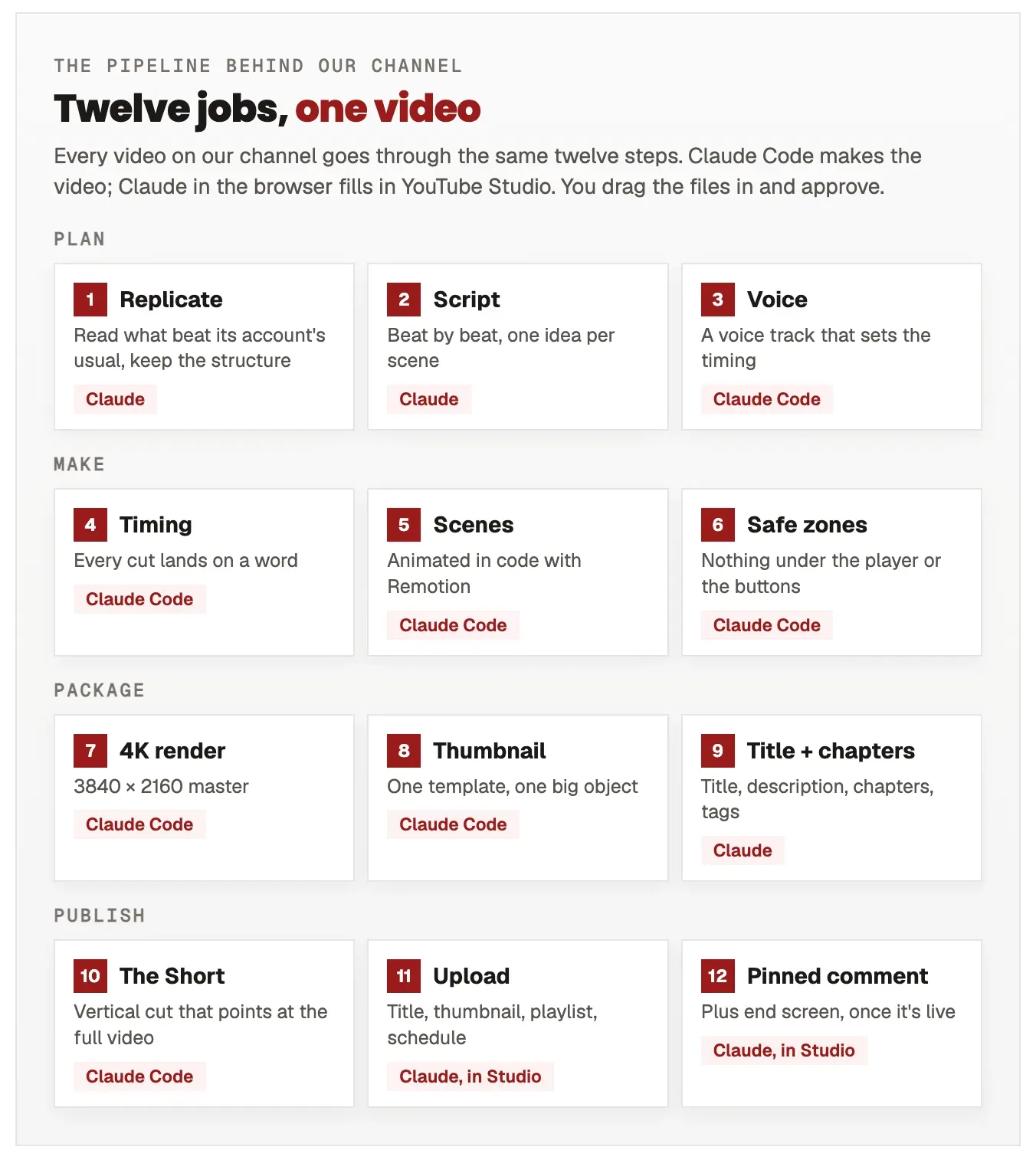
Two tools do almost all of it. Claude Code builds the video itself, because a video made from code can be changed with a sentence and never drifts off-brand. Claude in the browser handles YouTube Studio: upload details, playlists, schedules, pinned comments. Your part is a review and a few drags.
Step 1: Start from what is already working
The job that matters most happens before any script: picking what to make. Guessing is how channels stall. Instead, collect a handful of videos or reels in your niche and note how each did against its own account's usual numbers, not against everyone's. A small account at five times its normal views tells you more about the idea than a big account having an average day.
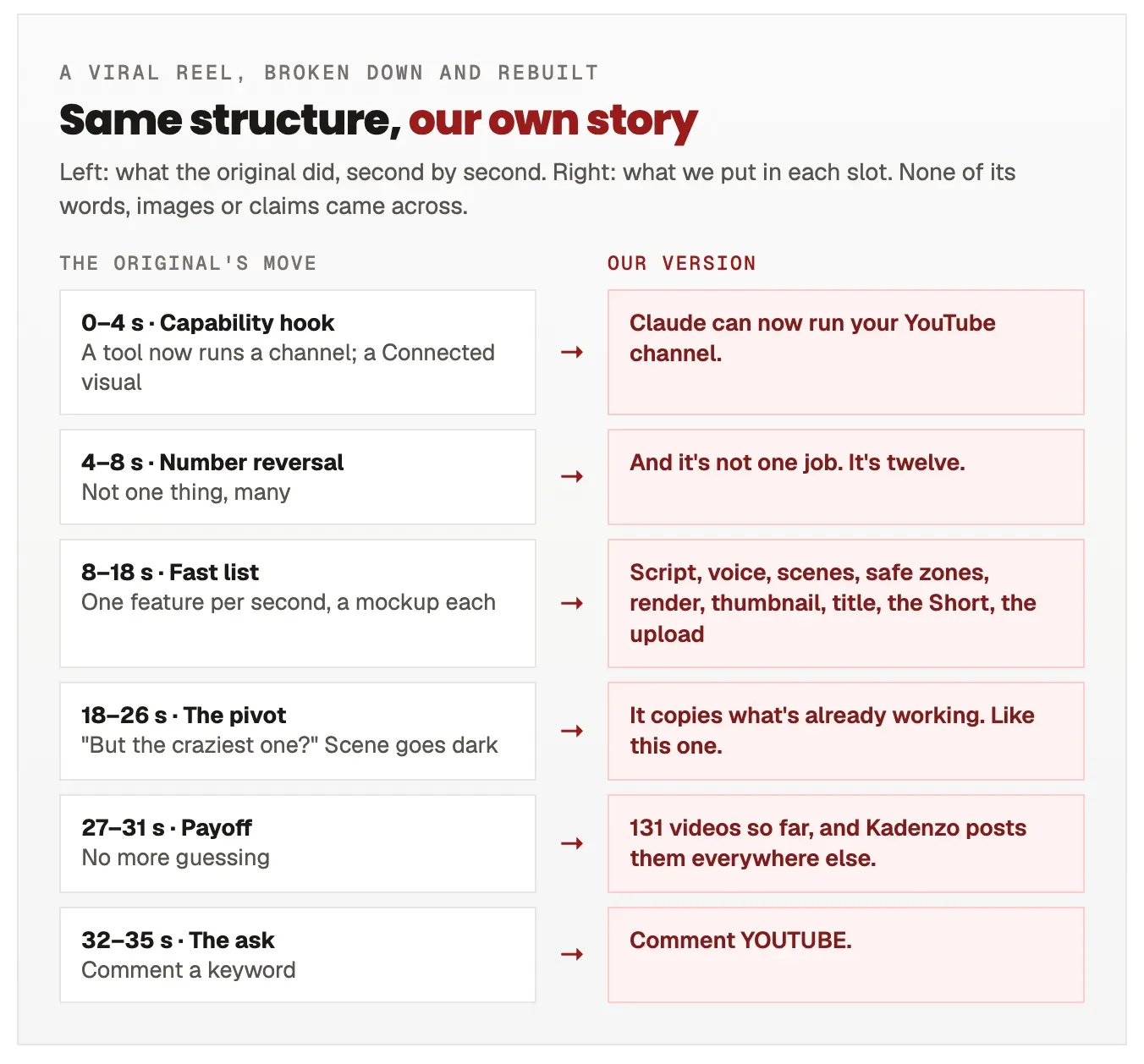
Then ask Claude to break the winner down second by second: the hook, the turn, the proof, the ask. You keep that structure and replace everything else. This is exactly how our reel about this pipeline was made: from a viral reel in the same niche, rebuilt around our own work.
The method in full, with the prompts, is in our guide to making carousels with Claude. It works the same way for video.
Step 2: Script, voice and scenes, in code
This is the part people mean by "AI video", and it is the part we have written up in the most detail, so here it is in brief. Claude writes the script as beats, one idea per scene. An AI voice reads it, and the voice's own timing tells every scene when to move, so cuts land on words. Claude Code then builds each scene with Remotion and checks that nothing important sits under YouTube's title bar, player controls or end-screen area before rendering a 4K master.
Our guide to making videos with Claude Code walks through every one of those steps on a real reel.
Step 3: Treat the thumbnail as a system
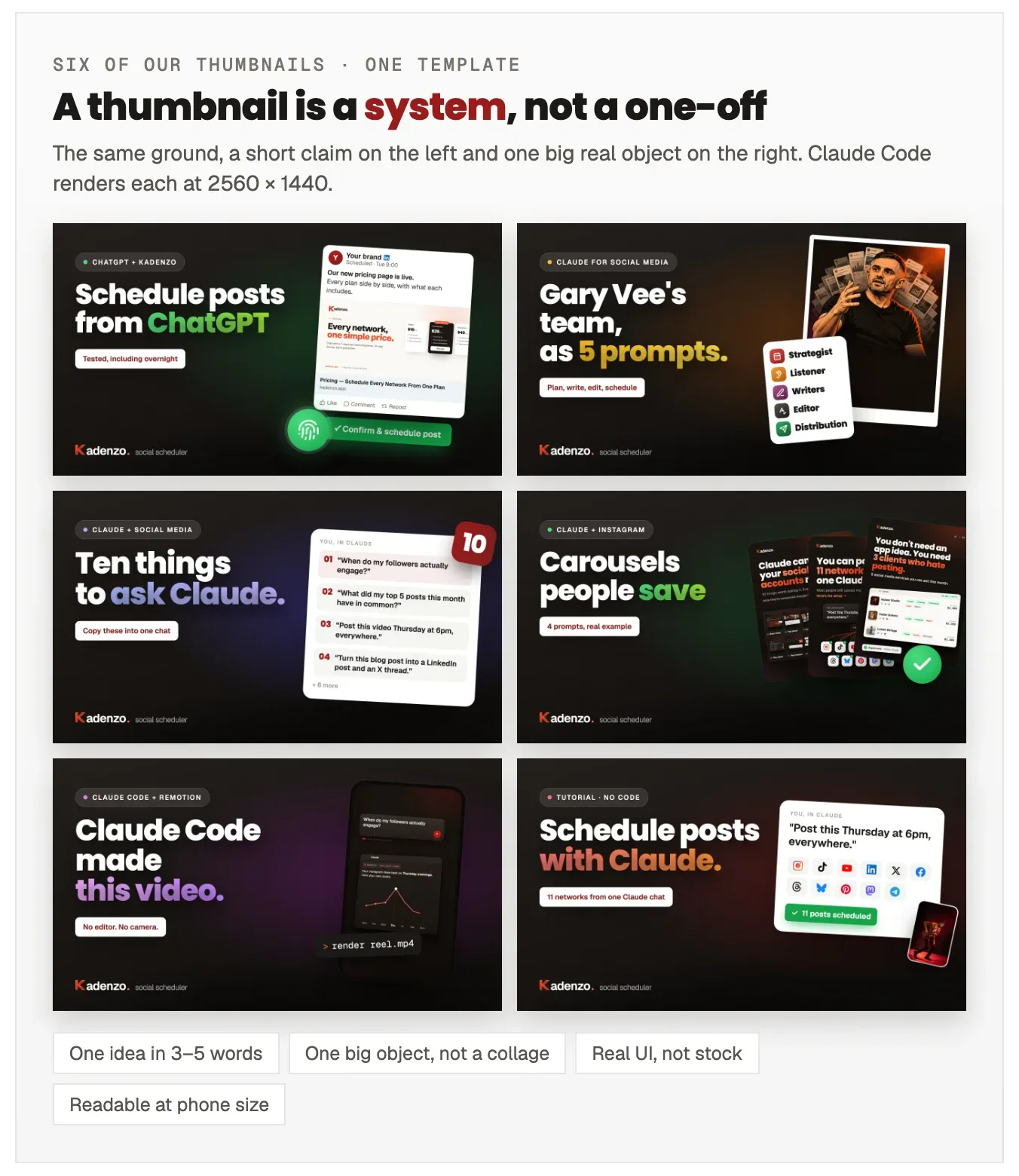
A thumbnail decides whether the video gets watched at all, and it is where most automated channels look automated. The fix is one template that every video reuses: the same ground, a short claim on the left, and one large real object on the right. Claude Code renders it from the same code as the video, at 2560 × 1440, so a new thumbnail is a new line of text and a new object, not a new design.
Step 4: Write everything around the video once
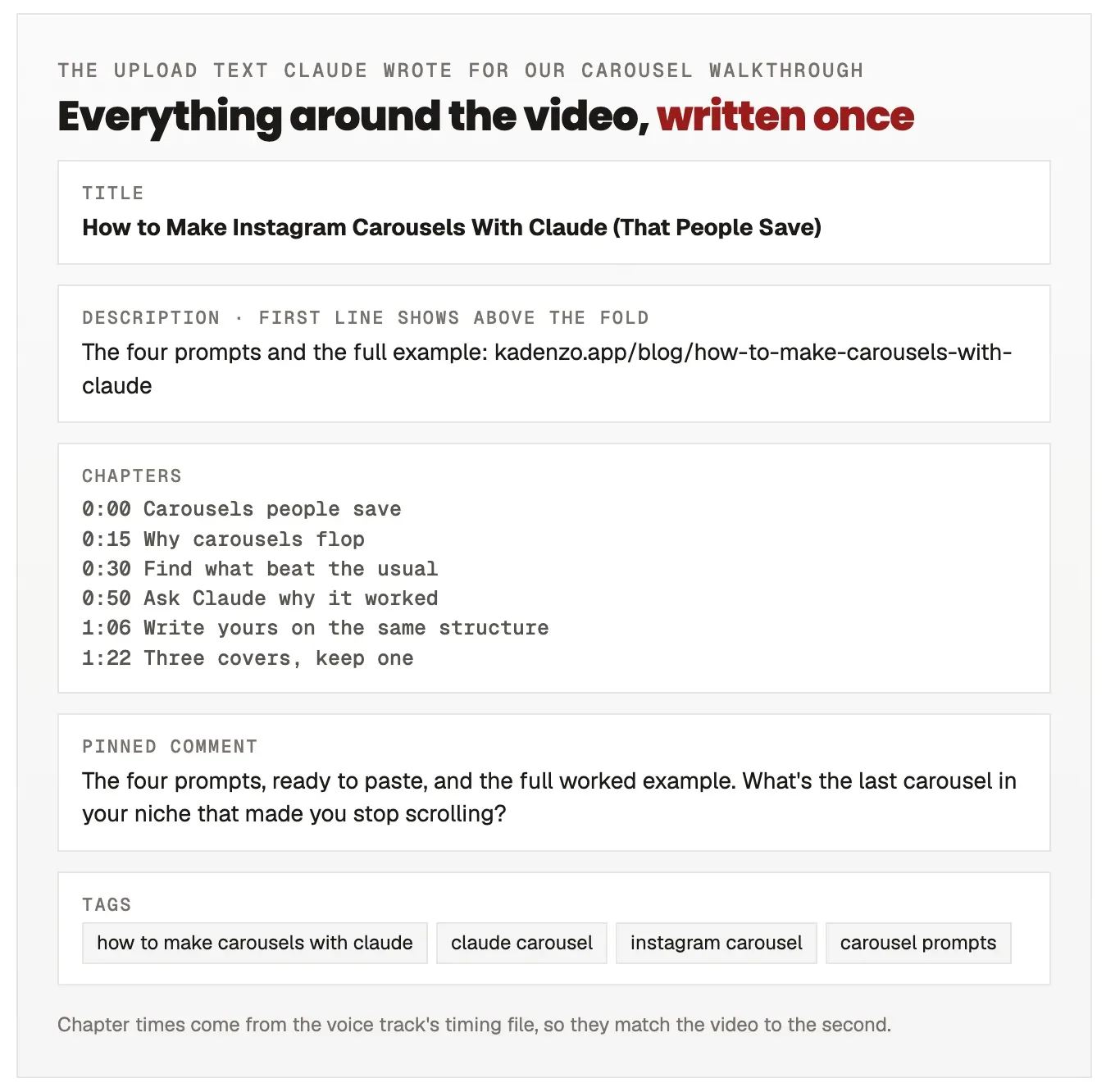
The text around a video does as much work as the video. Claude writes all of it in one file per video:
- Title: the searched phrase first, then the promise. "How to Make Instagram Carousels With Claude (That People Save)".
- Description: the first line is the only one most viewers see, so it carries the link. The rest summarises the steps in plain language.
- Chapters: YouTube only shows chapters when the first timestamp is 0:00, there are at least three, and each runs at least 10 seconds (YouTube's chapter rules). We take the times from the voice track's timing file, so they match the video to the second instead of being estimated.
- Tags and a pinned comment: the comment repeats the link and asks one specific question.
Step 5: Cut a Short from every long video
Every long video gets a vertical cut of its own, rebuilt at 1080 × 1920 rather than clipped from the landscape version, with text kept clear of the Shorts buttons and caption area, and an ending that points at the full video. On YouTube, the Short's "related video" link sends viewers straight to the long version, so the Short works as the long video's trailer.
One limit worth knowing: YouTube's API cannot set a custom cover on a Short. We tested it, and the cover ended up as a grey placeholder. Shorts covers are set by hand in YouTube Studio, which takes a few seconds per Short.
Step 6: Schedule every upload into a fixed week
The last job is the one that makes a channel feel alive: publishing on a rhythm. We use one fixed weekly pattern and fill it months ahead. Tutorials go out Monday, Wednesday and Friday at 16:00 with their Short two hours later, product Shorts fill the other evenings, and demos take Thursday and Sunday afternoons.
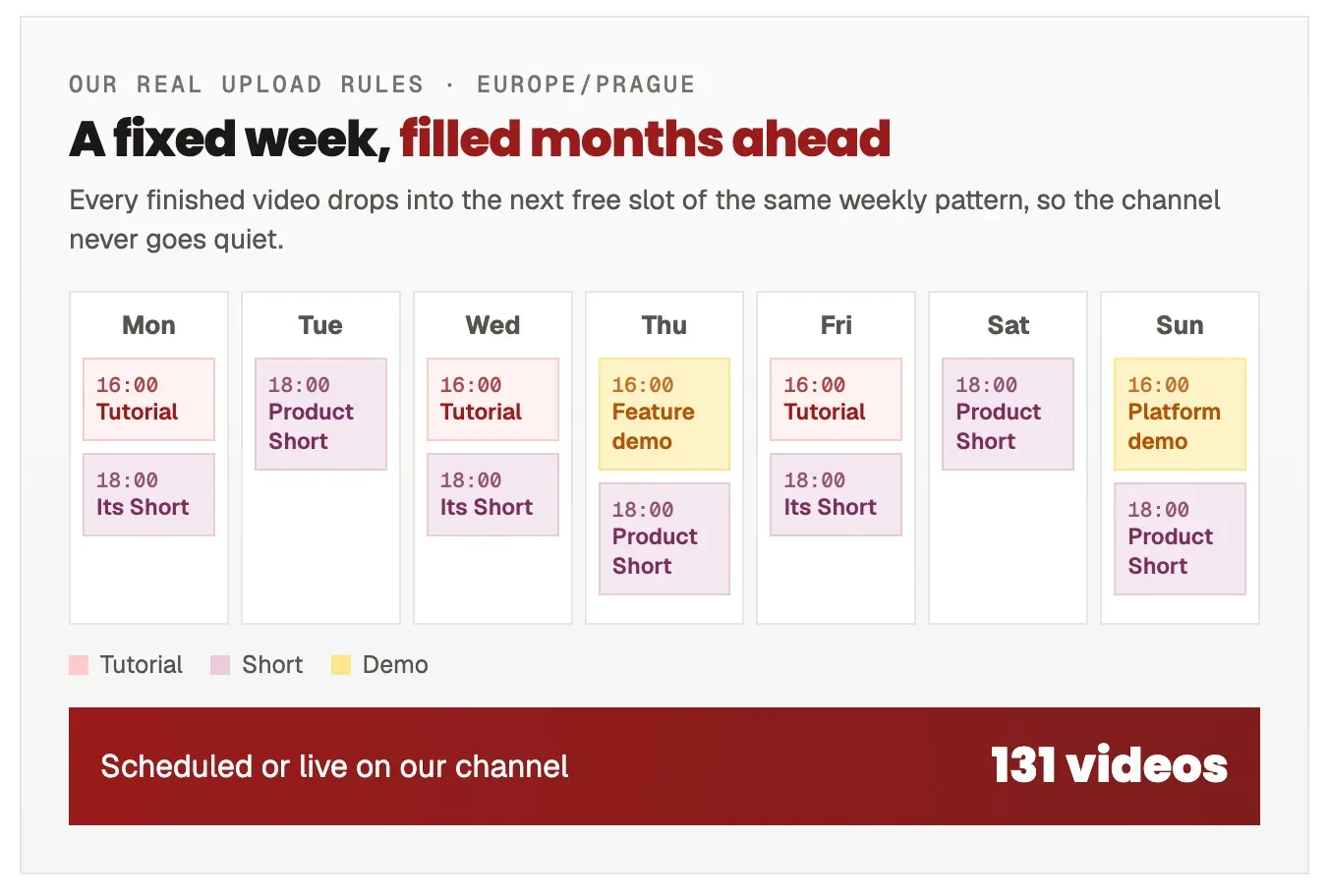
In our setup, you drag the finished files into YouTube Studio and Claude, working in the browser, fills in the title, description, thumbnail, playlist and publish time from that one file. A tracker records what is scheduled, so nothing is uploaded twice and nothing is forgotten. Once a video goes live, Claude goes back to pin the comment and set the end screen.
If you would rather not use the browser at all, a scheduler connected to YouTube does the same job: it uploads the video as private with its thumbnail, title, description and chapters, and makes it public at the time you set.
What stays yours
Four things stay with a person, and they are the ones that decide whether the channel is any good:
- The idea. Claude can show you what worked for others. Choosing what your channel should say is your call.
- The approval. Every script and every render gets watched before it is scheduled. Claude is fast; it is not always right about tone.
- The facts. Every number in a video has to be true. Ours are read from our own data, and anything that cannot be checked is cut.
- A few Studio clicks. Dragging the files in, and setting Shorts covers.
Where Kadenzo fits
Kadenzo is the scheduler we built, and it is the publishing end of this pipeline outside YouTube. The same finished videos go to Instagram, TikTok, LinkedIn and the other networks we support, each in its own format, from one calendar. On YouTube itself it schedules long videos and Shorts with their thumbnail, title and description set in advance; see the YouTube scheduler page. And because Kadenzo connects to Claude, you can schedule straight from the chat where the video was planned, as in our guide to scheduling posts with Claude.
Kadenzo for creators and video teams
One video, every network, on schedule
Schedule YouTube videos and Shorts with their thumbnails, then send the same video to Instagram, TikTok, LinkedIn and more from one calendar.
See plans and pricing
Frequently asked questions
Can Claude upload videos to YouTube by itself?
Claude can fill in an upload end to end in YouTube Studio through the browser: title, description, thumbnail, playlist and publish time. The video file itself still has to be selected, which takes a few seconds. A scheduler with a YouTube connection can also upload on your behalf and publish at a set time.
Is a fully automated YouTube channel against YouTube's rules?
Automation itself isn't the problem; repetitive, low-effort content is. YouTube's policies target videos that are mass-produced or barely changed from one to the next. A pipeline that makes original videos, with a person choosing the ideas and approving each one, is a production tool, not a content farm.
Do I need to know how to code to use Claude Code for videos?
No, but you need to be comfortable reading what it does. You describe the video in plain language and Claude Code writes the code. The first video takes the longest, because that is when your template and style get built; after that, each new video reuses them.
How long does one video take with this pipeline?
Most of the time goes into choosing the idea and reviewing the cuts, not making them. Once the template exists, the script, voice, scenes, thumbnail and upload text for a short video come together in a single working session, and the render runs while you do something else.
Can the same video go to TikTok and Instagram too?
Yes. The vertical cut works as a Reel and a TikTok as well as a Short, as long as the text stays clear of each app's buttons and captions. Schedule it to all of them from one calendar so the timing stays consistent.