
How to Schedule Social Media Posts With Claude
October 14, 2026 · 9 min read · by Jan Oršula
You can schedule social media posts from a normal Claude chat, but not with Claude alone. Claude needs a scheduling connector: a small add-on that gives it access to a scheduler where your accounts are already connected. Add the Kadenzo connector, connect your social accounts once, and from then on you can type "post this Thursday at 6pm, everywhere" and get eleven scheduled posts, each written for its own network. Setup takes about ten minutes and no code.
This guide follows one real-looking post from start to finish: Harbor Studio, a small illustration studio, announcing an open studio night on every account it has. You'll see the exact prompt, what Claude answers, and the one habit that keeps it safe: asking to see every version before anything is scheduled.
How Claude posts to social media
Out of the box, Claude can write a caption but can't publish it anywhere. It has no login to Instagram or LinkedIn, and it shouldn't. A connector fills that gap. It's a link between Claude and another app that lets Claude use a specific set of that app's actions, like "list my accounts" or "schedule this post," and nothing beyond them. (Under the hood connectors use the Model Context Protocol, an open standard, but you never have to touch it.)
With a scheduling connector, the work splits cleanly:
- Your social accounts stay connected to the scheduler, through each network's official login. Claude never sees a password or a network token.
- Claude does the writing and the asking. It turns your request into a post per network, shows you, and on your yes, hands the scheduler a finished request.
- The scheduler does the publishing, at the time you picked, through each network's official API, the same way a post you made by hand would go out.
That split is also why posting this way is safe to try. Disconnect the connector and Claude loses access instantly; your accounts and scheduled posts don't change.
What you need before you start
- A Claude account. Connectors from Claude's directory work on every plan, including Free (Anthropic's help article has the current plan details).
- A Kadenzo account on the Professional plan or higher. That's the plan that includes the Claude connection, along with the rest of the API and integrations.
- At least one social account connected in Kadenzo. Instagram, Facebook, TikTok, LinkedIn, X, Threads, Bluesky, Pinterest, YouTube, Mastodon and Telegram are all supported.
- Your image or video at a link. Claude passes media to the scheduler as a URL (your website, a shared drive link set to public, a CDN). Text-only posts don't need anything.
Step 1: Add Kadenzo to Claude
From Claude's connector directory
This is the path for almost everyone, on claude.ai and in the Claude desktop app.
- In the left sidebar, open Customize, then the Connectors tab.
- Switch to Discover and search for Kadenzo. (Or go straight to Kadenzo's directory page.)
- Click Connect. A Kadenzo window opens: sign in, check what Claude is asking to do, and click Allow.
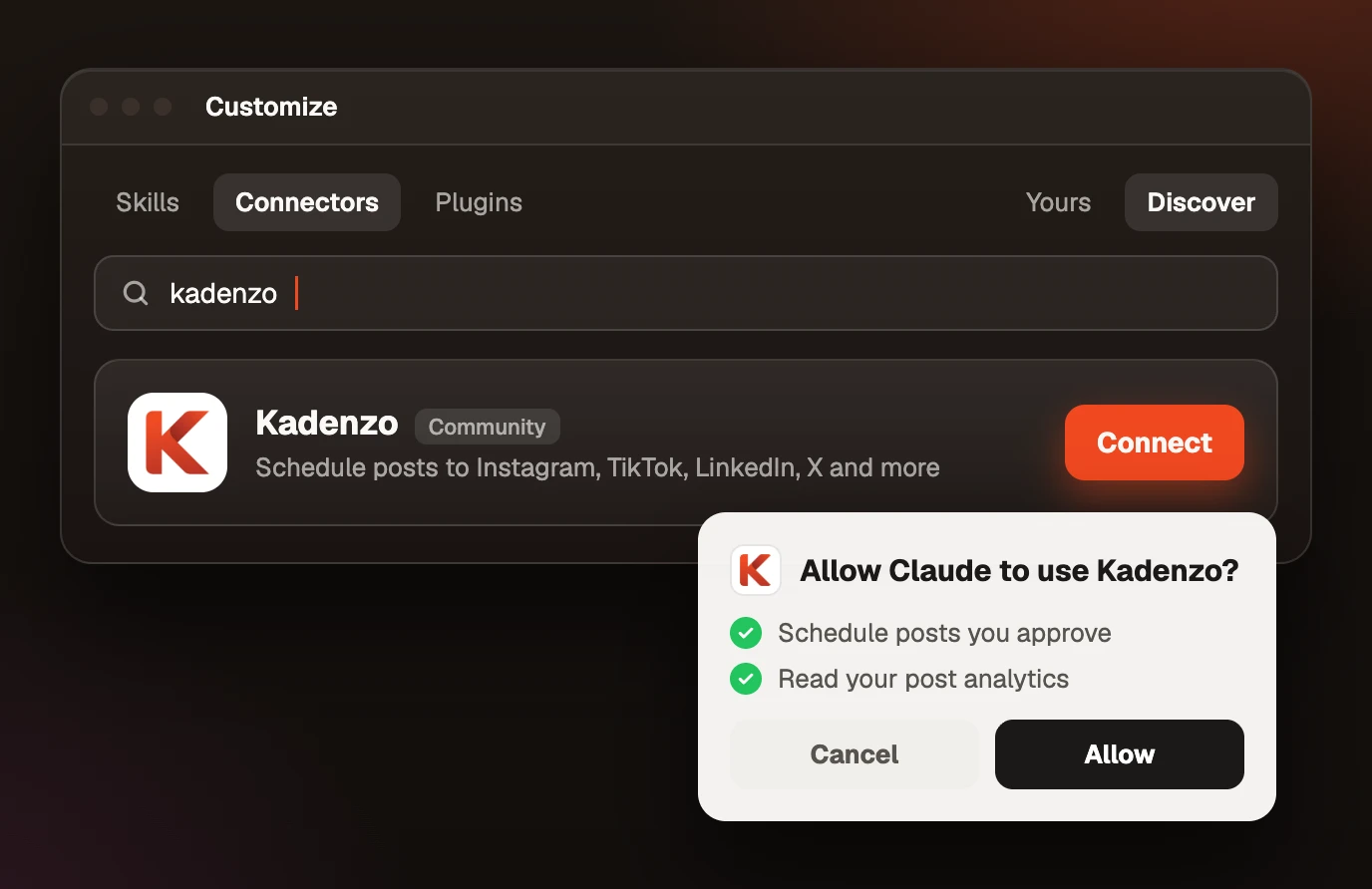
That's the whole install. To use it, open a chat, click + in the message box, then Connectors, and make sure Kadenzo is switched on. It stays on for new chats until you turn it off.
As a custom connector
If your workspace hides the directory (some Team and Enterprise admins do), you can add the same server by its address. In Customize, Connectors, click + Add, then Add custom connector, give it a name, and paste:
https://studio.kadenzo.app/api/mcp
Click Connect and you'll get the same Kadenzo sign-in. On Team and Enterprise plans an owner may need to add it for the organization first. Free accounts can add one custom connector, so the directory route is the better choice there.
In Claude Code
If you work in the terminal, one command adds it:
claude mcp add --transport http kadenzo https://studio.kadenzo.app/api/mcp
Then run /mcp inside Claude Code, pick kadenzo and sign in. Everything below works the same way there.
Step 2: Connect your social accounts in Kadenzo
Claude can only post where Kadenzo can. In Kadenzo, open Accounts and connect each network you post to. Each one opens that network's own login page (Meta for Instagram and Facebook, LinkedIn for LinkedIn, and so on), so the permission is granted by the network to Kadenzo, never typed into a chat.
Do this once. When you ask Claude to post "everywhere," it means every account connected here, and Claude can list them for you if you've forgotten which ones those are. If you manage several brands, connect them all; Claude will ask which one you mean when a request is ambiguous (two Instagram accounts, for example).
Step 3: Schedule your first post
Here's Harbor Studio's request, typed into a fresh chat with the connector switched on:
Here's Thursday's post: open studio night, 7 to 10pm, link to the RSVP page. Image: harborstudio.com/open-night.jpg. Schedule it on every account for Thursday 6pm. Show me each version first.
The last sentence matters most. "Show me first" makes Claude write each network's version, run Kadenzo's check on it, and stop. The check is a dry run: Kadenzo validates the accounts, each network's limits and the timing without scheduling anything, so problems surface before the post exists, not after it fails.
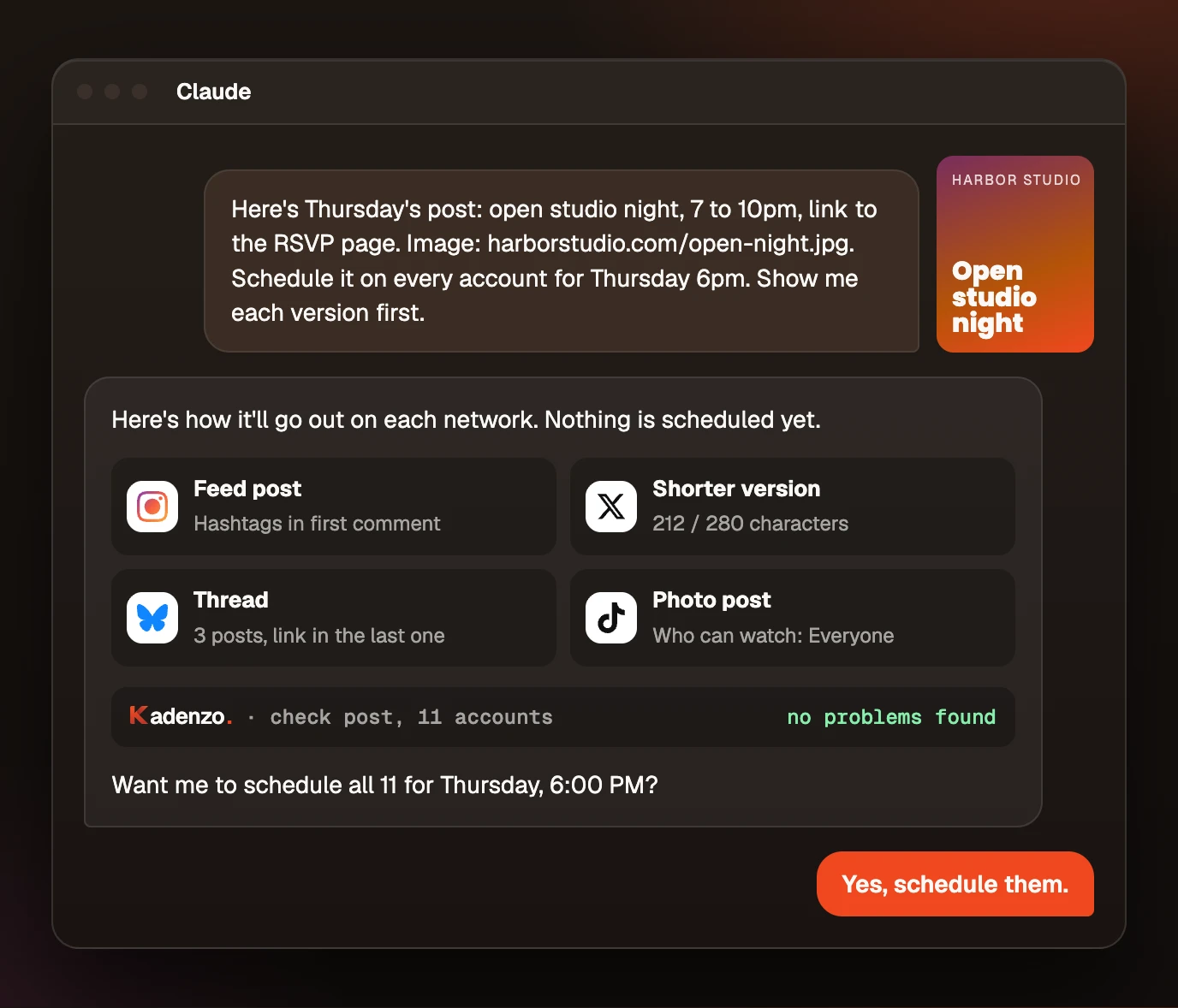
Read the versions the way you'd read a colleague's draft. If the X version cut the line you cared about, say so ("keep the 7 to 10pm in the X version") and Claude rewrites that one. When they're right, say yes. Claude schedules all eleven in a single request, and they appear on your Kadenzo calendar as eleven posts in one slot.
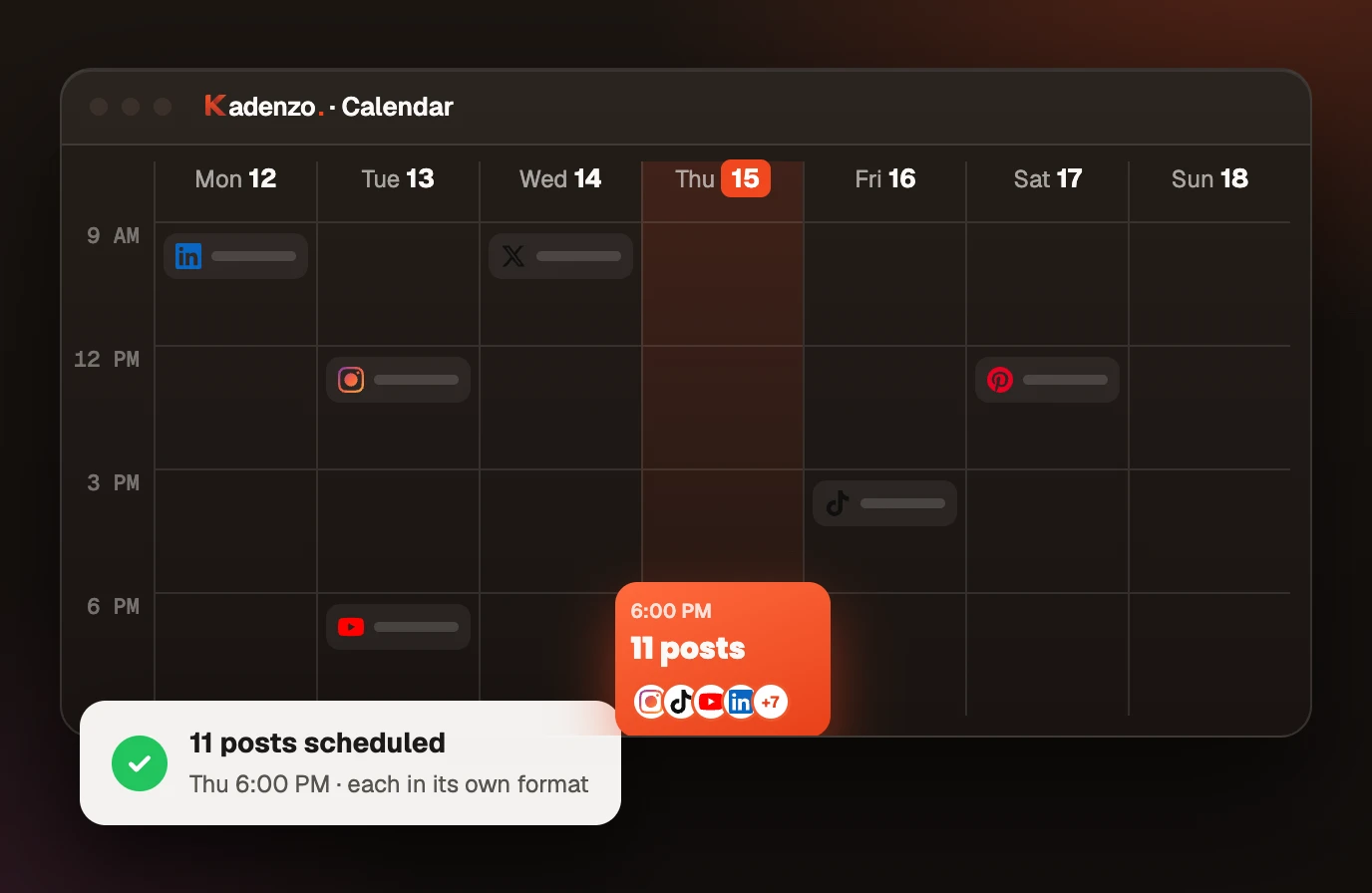
Two details Claude handles without being told. It confirms your time zone before it converts "6pm," and states the final local time back to you, so a post meant for your evening doesn't go out at someone else's. And Kadenzo only schedules for a future time, so "post this now" becomes "a few minutes from now," and Claude tells you that rather than pretending otherwise.
What Claude changes for each network
"Post it everywhere" works because Claude doesn't post the same text everywhere. Each network has different limits and habits, and a caption written for one trips at least one of the others.
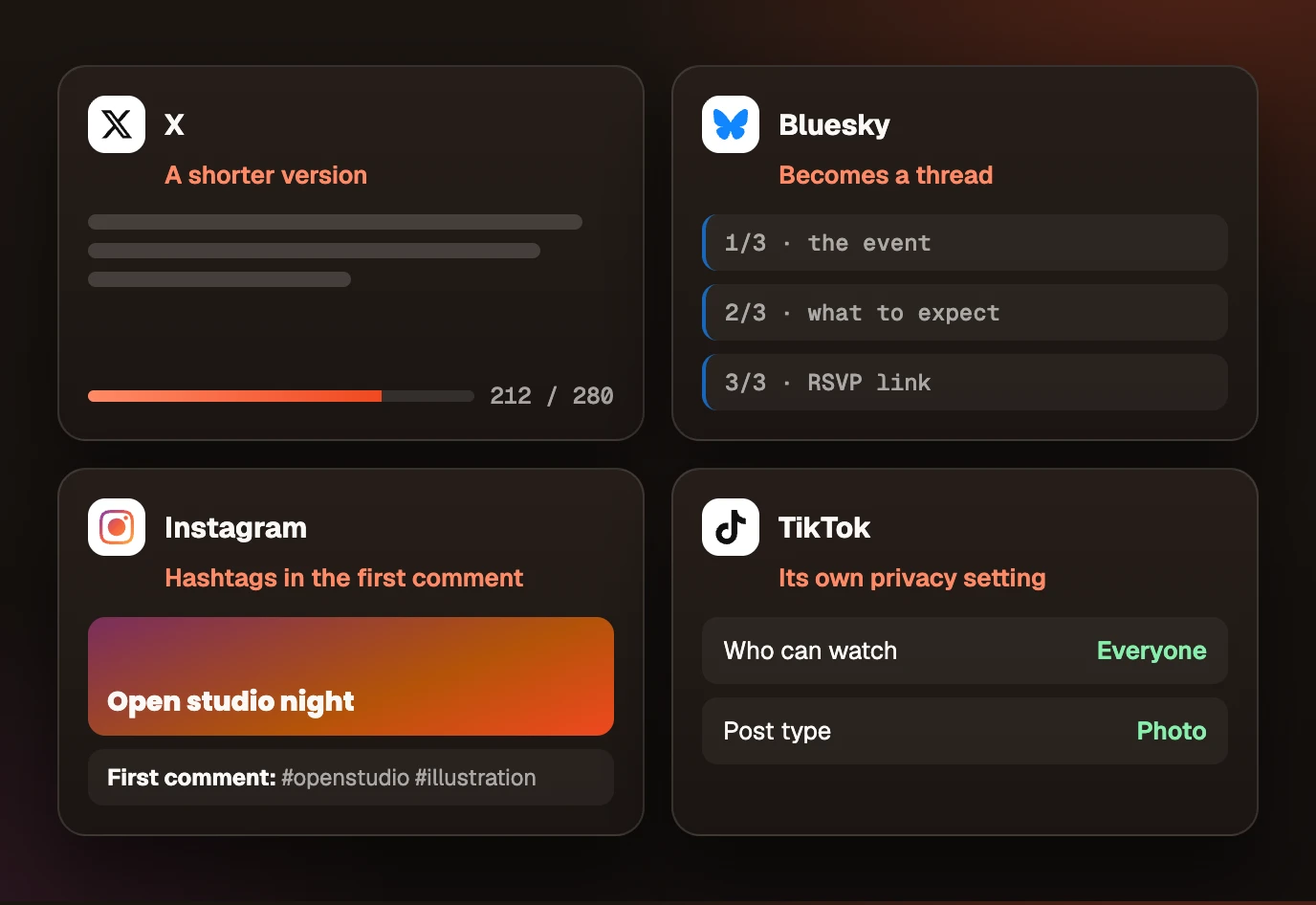
- X gets a shorter version. Standard X accounts have 280 characters, so a 400-character caption has to be rewritten, not cut off mid-sentence. Claude keeps the hook and the detail you said mattered.
- Bluesky becomes a thread. Bluesky's limit is 300 characters per post, so longer posts work better split into a short thread, with the link in the last post where people who got that far will actually tap it.
- Instagram's hashtags go in the first comment. The caption stays readable, the hashtags still count, and the first line is free to do its job before the "more" fold. (Our caption previewer shows where each network cuts your first line.)
- TikTok gets its own privacy setting. TikTok requires every post to say who can watch it, so Claude sets it explicitly instead of hoping for a default.
You can steer any of this in plain words: "no thread on Bluesky, keep it to one post," "put the hashtags in the caption on Instagram this time," "make the LinkedIn version more formal."
Prompts worth saving
Everything below uses things the Kadenzo connector can actually do, so it works today. Swap in your own details.
Planning a week
- "Here are five posts for next week. Spread them Monday to Friday at 10am on LinkedIn and Threads. Show me the schedule before you book anything."
- "When do my Instagram posts usually get the most engagement? Schedule Friday's post for that time." Claude reads this from your own posting history, not a generic chart. (For a quick outside view, the best time to post tool does the same for any timezone and network.)
Writing
- "Write three caption options for this image for Instagram, short and warm. I'll pick one, then schedule it for Sunday 11am."
- "Here's my new blog post [paste the text]. Turn it into a LinkedIn post and an X thread. Schedule the LinkedIn post for Tuesday 9am and the thread an hour later."
Fixing what's already scheduled
- "What's scheduled for this week?"
- "Move Wednesday's X post to Thursday at the same time."
- "Cancel the TikTok post on Saturday."
Checking how it went
- "How did last week's posts do? Which one got the most engagement, and on which network?"
- "Which of this month's Instagram posts did best, and what do they have in common?"
Claude asks before it schedules, changes or cancels anything, so the fixing prompts are as safe as the planning ones.
Limits to know
- It schedules, it doesn't post live. Every post gets a future time. "Now" means a few minutes out.
- Media goes in as a link. You can't drag a file from your desktop into the request; host it somewhere public and paste the URL.
- Claude's writing is a first draft. It's fast and usually close, but it doesn't know that your audience hates the word "excited." Read the versions; that's what "show me first" is for.
- Some actions have daily caps. AI caption generation through the connector has a daily limit per account, like the rest of Kadenzo's AI features. Scheduling posts you wrote yourself doesn't.
- It only reaches accounts you connected. Claude can't post to an account that isn't in Kadenzo, and it can't see one either.
To remove access at any time, disconnect Kadenzo under Customize, Connectors in Claude, or revoke the connection in Kadenzo under Settings, API keys. Either one cuts it off immediately.
Frequently asked questions
Can Claude post to social media on its own?
No. Claude has no access to your social accounts by default. It needs a connector to a scheduling app where those accounts are connected, and then it can only do what that connector allows: in Kadenzo's case, schedule, edit and cancel posts, and read their analytics.
Do I need a paid Claude plan to schedule posts?
No. Connectors from Claude's directory, including Kadenzo, work on the Free plan too. The paid part is on the scheduling side: the Claude connection is included in Kadenzo's Professional plan and above.
Does Claude see my social media passwords?
No. You connect each network inside Kadenzo through that network's own login page, and Kadenzo holds the access. Claude only sees what the connector returns, such as your account names and your scheduled posts.
Can Claude publish a post right now?
Not instantly. Kadenzo schedules every post for a future time, so a request to post now is scheduled a few minutes ahead, and Claude tells you the exact time.
Will Claude post something without asking me?
Claude asks before it schedules, changes or cancels anything through Kadenzo. Adding 'show me first' to a request makes it stop at the drafts and the check, so you see every network's version before you say yes.
How do I disconnect Claude from my accounts?
Either side works. In Claude, open Customize, then Connectors, and disconnect Kadenzo. In Kadenzo, revoke the Claude connection under Settings, API keys. Your accounts and already scheduled posts stay as they are.