
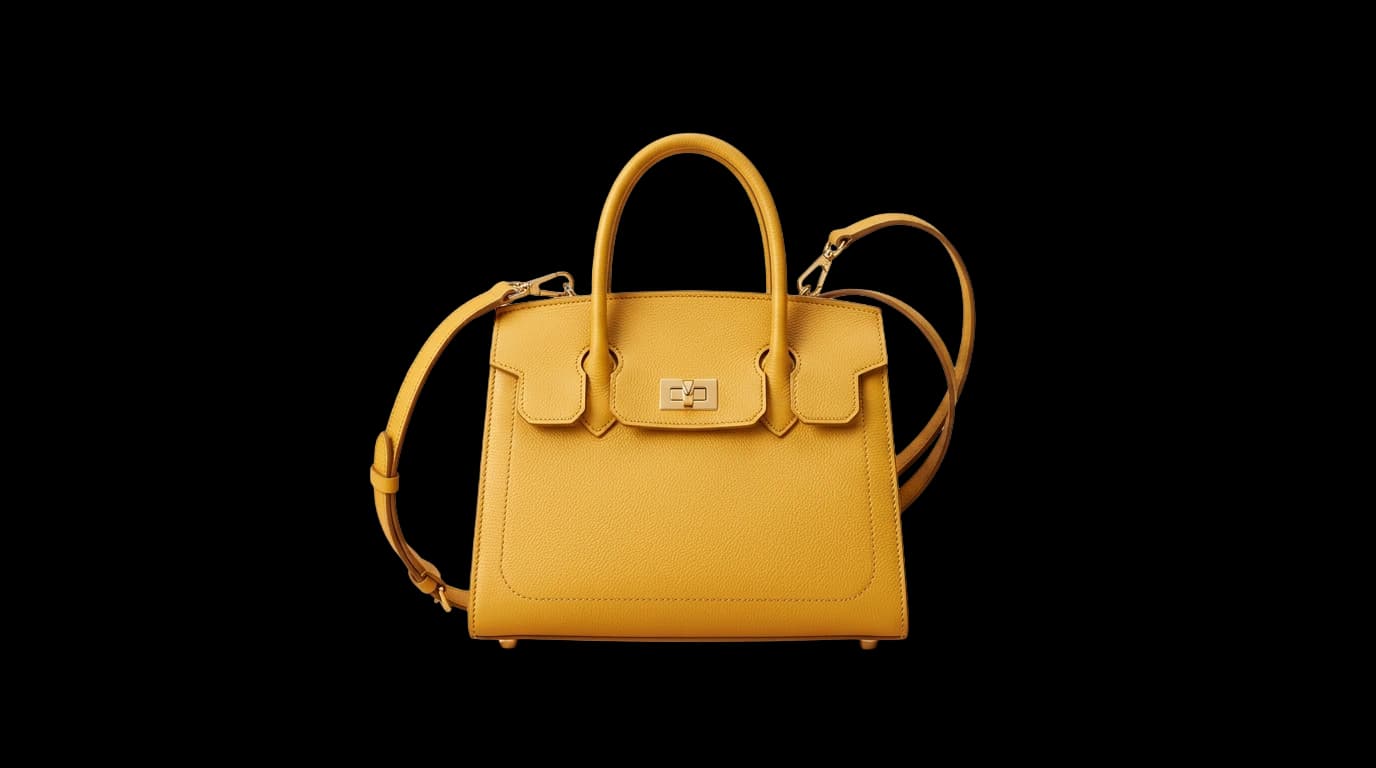
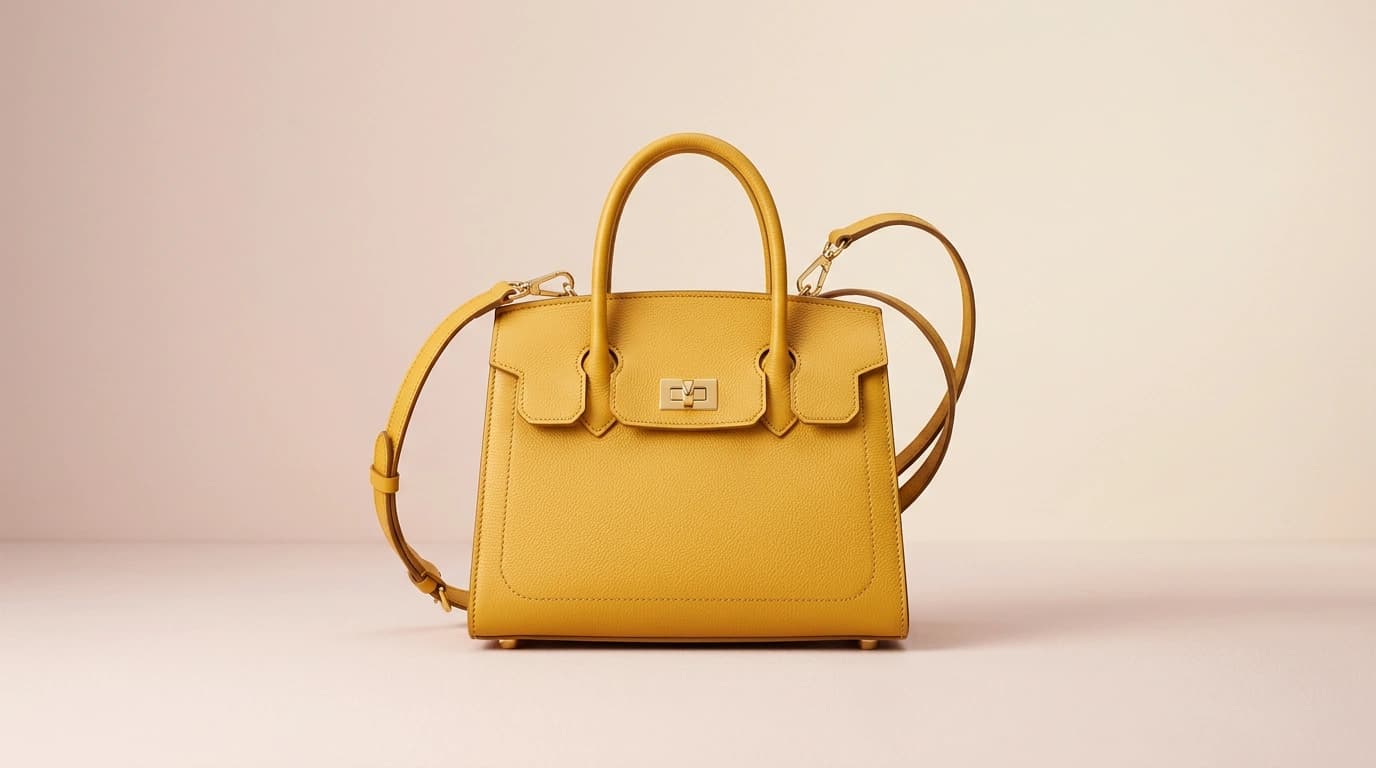
The cutout happens on your machine, not a server
Most free background removers upload your image, process it on their servers, and hand it back, which means your photo lands on someone else’s computer. This one works differently: it downloads a small AI model to your browser once, then runs every cutout locally. The practical upshots are real: your image stays private, there’s no per-image limit or watermark, and the only cost is a one-time model download your browser caches. The trade is that the first run waits on that download and the work uses your device’s memory rather than a data centre’s.
How to remove an image background
From photo to clean cutout in five steps:
- 1
Add your image
Drag a photo in, click to browse, or paste one straight from your clipboard. PNG, JPG, WebP, GIF and BMP up to 25 MB are accepted.
- 2
Wait for the one-time model download
The first run downloads the AI model (~44 MB on Fast). Your browser caches it, so every image after that starts instantly.
- 3
Let it cut out the subject
Inference runs locally on your device, a few seconds on most machines. Your image never leaves the browser.
- 4
Choose your background
Keep it transparent as a PNG, or flatten onto white, black, or any custom colour for a JPG. Switch freely; it re-renders from the same cutout.
- 5
Download the result
Save the transparent PNG or the solid-colour JPG, named for posting. No watermark, no signup, unlimited use.
Transparent PNG or a solid background?
Pick by where the cutout is going. A transparent PNG is right when something will sit behind it: a coloured carousel slide, a thumbnail layout, a product over a banner. A solid background(white is the safe default, but black or a brand colour work too) is right when the image stands on its own and you want a clean, consistent frame, or when the destination flattens transparency anyway. Both export from the same cutout, so it costs nothing to try each. For fine edges like hair, switch to High quality before you download. It’s the same model at full precision.
Where a clean cutout fits
A subject on transparency is the raw material for a lot of social design: a face or product you can drop onto a branded background, a consistent set of headshots, the hero element of a carousel cover. Once you have the cutout, size it for each placement with our image resizer, drop it onto a carousel cover, and keep the whole set on-spec with the guide to image sizes.
Frequently asked questions
Is my image uploaded to a server?
No. The cutout runs entirely in your browser using a model that does the work on your own device, so your photo is never sent anywhere, and there's no account or log. The only thing downloaded is the model itself, once, from a public CDN; your image stays local from upload to download.
Why is there a one-time download the first time?
Because the AI that separates subject from background is a real model that has to live somewhere, and since we run it in your browser rather than on a server, it downloads to your device the first time. It's roughly 44 MB on Fast, then cached, so the second image onward is instant. It's the trade for keeping your images private: the compute happens on your machine, not ours.
What's the difference between Fast and High quality?
They're two versions of the same model. Fast (~44 MB) is a compressed build that's quick and good enough for most social cutouts. High (~175 MB) is the full-precision model, noticeably better on fine edges like hair and fur, at the cost of a bigger download and slower run. Start on Fast; switch to High only when the edges matter and you're not on mobile data.
When should I use a transparent PNG versus a solid background?
Use the transparent PNG when something else will sit behind the cutout: a coloured slide, a thumbnail composition, a logo over a banner. Use a solid background (white is the safe default) when the image stands alone and you want a clean, consistent look, or when the destination doesn't honour transparency. The tool exports either from the same cutout, so you can try both.
What image types and sizes work?
PNG, JPG, WebP, GIF and BMP, up to 25 MB. Very large images use more memory, and since everything runs on your device, an enormous file on an older phone can run out of memory. If that happens, resize the image down first and try again. For most social photos straight off a phone, you'll never hit the ceiling.
Does it work on a phone?
Yes, on modern mobile browsers, but mind the model download on a cellular connection, and the heavier High-quality model can strain memory on older devices. On a phone, stay on Fast and ideally run it on Wi-Fi the first time so the one-time download isn't on your data plan.