
Scheduled Post Not Publishing? How to Fix It
August 18, 2026 · 5 min read · by Jan Oršula
When a scheduled post doesn't publish, work the causes in order of likelihood instead of poking at random settings. Nearly every case is one of five things, and they're not equally common: an expired account connection is by far the most frequent, followed by a business-account linking problem, then a media-spec rejection, then a timezone "silent success" where the post actually went out but at the wrong hour, and finally a permissions or role issue. Check them top to bottom and you'll usually find it in the first two. This guide walks each one, and draws the line between a silent failure and a hard one, because they're diagnosed differently.
First, silent failure vs hard failure
Before you touch anything, figure out which kind of failure you have, because it points at different causes.
A hard failure is loud: your scheduling tool shows the post as "failed," or it never left the queue. Something rejected it: a bad token, a bad file, a permission gap. The tool usually knows and tells you.
A silent failure is the sneaky one: the tool reports success, but the post isn't where you expect it, or it published at the wrong time. Here the mechanism worked; the intent didn't. Timezone drift is the classic silent failure. The post went out perfectly, three hours early.
If you have a hard failure, start at cause 1. If the post seemingly "vanished" despite a success message, jump to cause 4 first.
1. Expired or revoked account connection
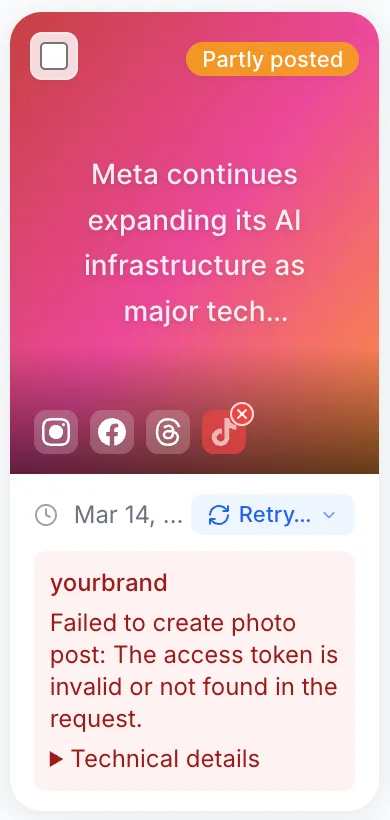
This is the number-one cause, so check it first. Social platforms expire the access tokens that let a scheduler post on your behalf. Meta refreshes them on a roughly 60-day cycle, and any password change, security review, or permission edit can revoke one early. When the token dies, the scheduler can no longer publish, and the post fails.
The fix is to reconnect (reauthorize) the account in your tool's connection settings. Don't just retry the post; retrying with a dead token fails again. Reconnecting mints a fresh token and clears the backlog. A good posting queue will flag an expiring connection before it lapses; if yours warns you, act on it rather than dismissing it, because a silent lapse is what turns into a missed post at the worst moment.
2. Personal account, or a missing Page link
If the connection is healthy but posts still won't go, the account type is the next suspect, especially on Instagram and Facebook. Meta's publishing API only works for Business or Creator accounts. It cannot publish to a personal profile at all. Whether a Facebook Page is also needed depends on how your scheduler connects:
- Your Instagram account must be set to Business or Creator (not personal), always.
- If the scheduler connects through Facebook, the Instagram account also has to be linked to a Facebook Page you have access to. Tools that connect through Instagram's own login (available since 2024) don't need the Page.
If your scheduler can't "find" your account, or every post to it fails, the account type or (on the Facebook route) the Page link is usually missing or broken. Fix it in the account's settings, then reconnect in the scheduler so it picks up the corrected relationship. The same constraint is worth knowing before you lean on automation for a platform. It's part of why cross-posting behaves differently on each network.
3. Media spec or aspect-ratio rejection
Platform APIs are pickier than the apps you post from by hand. A file the Instagram app happily accepts can be rejected by the publishing API, which causes the post to fail while everything else looks fine.
Common rejections:
- Wrong format. APIs typically want JPG or PNG for images and MP4 (H.264) for video. WebP, HEIC, and GIF often bounce, so convert them first.
- Aspect ratio or dimensions out of range. Too tall, too wide, or below a minimum resolution gets refused.
- File too large, or video too long/short for the target platform.
If a specific post fails while others sail through, the odds are it's the media. Swapping in a correctly sized, standard-format file usually fixes it on the next attempt; keeping to the standard social media image sizes avoids the problem in the first place.
4. Timezone "silent success"
This is the failure where the post did publish. You just didn't mean it to go out then. It's the top cause of "my post disappeared" reports where nothing actually errored.
The mechanism is a timezone mismatch between your scheduler, the platform's own timezone setting, and sometimes your device clock. Meta Business Suite, for instance, uses your Page's timezone, not your personal one. Set a slot without noticing the mismatch and the post fires hours off: early, so you scrolled past it, or overnight into an empty feed. Because there's no error, it's easy to misread as "didn't publish."
Confirm the timezone in your scheduling tool matches the audience-timed slot you intended, and check it against the platform's setting. The full method for getting this right region by region is in scheduling across time zones.
5. Permissions or role issues
Last, and least common: you have the connection, the right account type, and clean media, but your role on the Page or asset doesn't allow publishing. Meta requires an Admin, Editor, or equivalent content role to post; a lower role (Analyst, Advertiser) can view but not publish. Recently changing two-factor settings can also make Business Suite drop its publishing permission until you re-authorize.
Check that your user has a publishing-capable role on the target Page or asset, and if you just changed 2FA, log out of the platform's business tools fully and reconnect. That restores the permission the token needs.
Work these five in order and the odds are overwhelming you'll clear it at step 1 or 2, and once the connection and account type are solid, most scheduled posts just work.
Frequently asked questions
Why didn't my scheduled social media post publish?
In order of likelihood: an expired account connection (the most common, so reconnect to refresh the token), an Instagram account that isn't a Business or Creator profile (or, when the tool connects through Facebook, isn't linked to a Page), a media file the platform's API rejected, a timezone mismatch that published it at the wrong hour, or a Page role that lacks publishing permission. Check them in that order.
What's the difference between a silent and a hard failure?
A hard failure is visible: the tool marks the post failed or it stays stuck in the queue because something rejected it. A silent failure reports success but the post isn't where or when you expected, usually because of timezone drift. Hard failures point to tokens, media, or permissions; silent ones almost always point to timezone settings.
How do I fix an expired social media connection?
Reconnect (reauthorize) the account in your scheduling tool's connection settings rather than just retrying the post. Retrying with a dead token fails again; reconnecting mints a fresh token and clears the queued posts. Platforms like Meta expire these tokens roughly every 60 days, so it recurs.
Why does Instagram reject a photo my phone accepted fine?
Publishing APIs are stricter than the native apps. They typically want JPG or PNG images and MP4 (H.264) video within specific size and aspect-ratio limits, and they bounce formats like WebP, HEIC, or GIF that the app tolerates. Convert to a standard format and correct size, then reschedule.