
Social Media Image Sizes: Think in Aspect Ratios, Not Pixels
June 13, 2026 · 8 min read · by Jan Oršula
The fastest way to stop fighting social media image sizes is to stop memorizing pixels. Platforms nudge their recommended dimensions every year, but the aspect ratios underneath barely move; six of them run almost everything. The working set: 3:4 or 4:5 and 1:1 for feed posts, 9:16 for stories and vertical video, 16:9 for YouTube and wide posts, 1.91:1 for shared-link previews, and 2:3 for Pinterest. Learn the shapes, design to the safe zones inside them, and a pixel change becomes a non-event instead of a re-export. This guide covers the ratios, the safe zones cropping eats, and a design-once workflow.
Why pixels are the wrong unit
A pixel dimension is a ratio plus a resolution, and only the ratio affects how your image is framed. Instagram showing a portrait post at 1080×1350 or some future 1290×1612 is the same 4:5 either way: your composition is unaffected; only the file size changes. So the dimension that gets written on every cheat sheet is the volatile half, and the half that actually governs whether your subject gets cropped is the one those sheets bury.
Resolution still matters, but as a floor, not a target: upload at or above the platform's recommended pixels so the image isn't upscaled, and you're done thinking about it. Aspect ratio is where the real decisions live, which is why it's worth holding the short list in your head.
The aspect ratios that actually matter
Six ratios cover the slots you'll use weekly. Here's each one, what it's for, and the pixel size to export at (reviewed August 2026; treat these as the floor, and the ratio as the rule):
- 3:4 or 4:5 (tall feed post). 1080×1440 or 1080×1350. The tallest shapes a feed will show, so they take the most vertical space on screen. The two aren't interchangeable everywhere: Instagram accepts 3:4 and is the only place it pays off, because 3:4 is also the shape of the profile grid, so the post survives both surfaces uncropped. Facebook and LinkedIn still stop at 4:5. If one file has to serve all three, export 4:5, since it clears every feed.
- 1:1 (square). 1080×1080. The safe universal: it never crops oddly in a grid and works as a fallback anywhere.
- 9:16 (vertical full-screen). 1080×1920. Stories, Reels, TikTok, YouTube Shorts, anything that fills a phone screen.
- 16:9 (wide landscape). 1280×720 for a YouTube thumbnail, 1600×900 for a wide X or feed image. The classic video frame.
- 1.91:1 (shared-link preview). ~1200×630. The shape of the Open Graph card that renders when a link is posted across Facebook, LinkedIn, and X.
- 2:3 (Pinterest Pin). 1000×1500. Pinterest rewards tall; this is its native shape.
Two more you'll meet occasionally: 3:1 for an X header (1500×500) and 4:1 for a LinkedIn profile cover (1584×396), both extreme letterbox shapes where the safe-zone problem below is at its worst.
Safe zones: design for the crop, not the canvas
The canvas is what you upload; the safe zone is the part that survives being displayed. The two are different more often than people expect, and the gap is where good images get ruined:
Profile grids re-crop your post. Instagram's grid tile is 3:4, so a 4:5 or square image displays in full in the feed and then gets trimmed on your profile: the same file, two different crops. Keep anything load-bearing (a face, a headline, a logo) away from the top and bottom eighth, which is the first thing any grid crop eats.
Story and Reel interfaces overlap the edges. On a 9:16 story, the top ~250px and bottom ~250px sit under the profile bar and the caption, reply, and link UI. Design the full 1080×1920, but keep text and key subjects in the center ~1080×1420 so the interface never covers them.
Banners get a profile picture punched into them. On most cover and header slots, the avatar and account name sit on top of the banner: bottom-left on LinkedIn, lower area on an X header. Anything important there is hidden behind a circle. Treat banners as a center-and-right composition and leave the lower-left quiet.
The rule generalizes: design to fill the canvas, but place everything that must be seen inside the smaller rectangle the platform actually keeps.
Design once, export everywhere
You don't make a separate file per platform from scratch; you make one strong asset and adapt it. The workflow that scales:
- Start from the largest, most flexible original. A high-resolution image with some breathing room around the subject crops gracefully into every ratio. A tight composition with the subject at the edge crops badly into all of them.
- Choose the crop per ratio, don't accept the default center. The subject is rarely dead center, so a centered auto-crop usually clips it. Set the focal point deliberately for each shape. Our social media image resizer does this in one pass: drag the subject into frame once and export every ratio as a batch, with the focal point applied across all of them.
- Pick the fit by what can be cut. Photographs crop to fill: losing the edges is fine and letterboxing a photo looks cheap. Logos, screenshots, and quote cards fit-and-pad instead, because trimming them breaks the content.
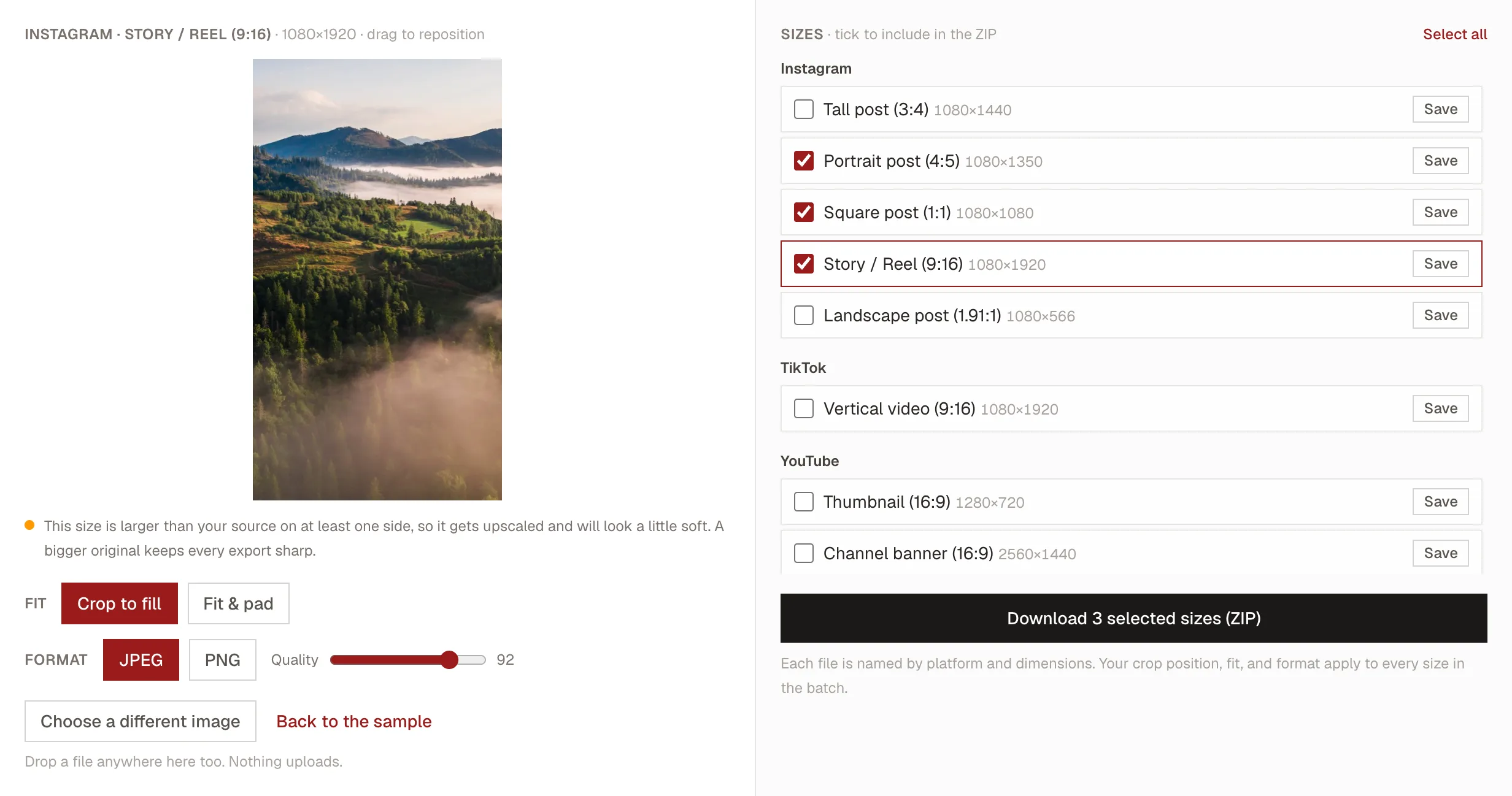
For the formats where the image is the layout, dedicated tools beat a generic resize: a seamless multi-tile grid is the job of the Instagram grid splitter, and a multi-slide document belongs in the LinkedIn carousel maker. Everything else (single images that need to exist at five sizes) is the resizer's job.
When the platform crops anyway
Even a correctly sized image gets shown at different ratios in different places: the feed, the profile grid, the search result, the notification thumbnail. You cannot control all of them, so design for the two that matter: the feed view where most people see it, and the profile grid where new visitors judge your account. Let the long-tail contexts fend for themselves. The composition that survives this is the one with a clear subject and uncluttered margins. Busy, edge-to-edge images are the ones that look broken the moment a platform reframes them, which it always eventually will.
That's the whole discipline. Hold the six ratios in your head, keep what matters inside the safe zone, work from one large original, and the question "what size should this be?" answers itself, and stays answered the next time a platform quietly moves a number.