
Can ChatGPT Schedule Your Social Media Posts?
October 20, 2026 · 13 min read · by Jan Oršula
Yes, but not by itself. Out of the box, ChatGPT can write a caption and can't send it anywhere: it has no login to your Instagram or LinkedIn. Add a scheduling plugin, connect your social accounts to that scheduler once, and ChatGPT can draft a post, check it against each network's limits, and put it in your queue for a future time. It asks you to confirm before anything is scheduled, and that confirmation is the part you can't automate away. We tested what happens when you try.
This guide covers why ChatGPT needs help to post, the three ways to give it that help, one real post going from prompt to queue, and the experiment most guides skip: whether a ChatGPT scheduled task can stock your queue while you're away.
Why ChatGPT can't post on its own
Two things stand between ChatGPT and your accounts.
It has no access. Posting to LinkedIn or Instagram requires a token that the network issues to an app after you log in and approve it. ChatGPT has never been through that login, so there's nothing for it to post with. Asking "post this to my Instagram" in a plain chat gets you a polite explanation and a caption to copy.
Nothing runs after the chat ends. A scheduled post has to go out at 9:00 on Tuesday whether or not your laptop is open. ChatGPT answers when you talk to it. Something else has to hold the post and publish it at the right minute, and that something is a scheduler: a service that keeps your accounts connected through each network's official login and publishes on time.
So "can ChatGPT schedule posts" really asks: can ChatGPT talk to a scheduler? Since 2025 it can, through plugins (OpenAI called them apps until it moved them into a Plugin directory in July 2026). A plugin gives ChatGPT a short list of actions in another service, like "list my accounts" or "schedule this post", and nothing beyond them.
Three ways to connect ChatGPT to your social accounts
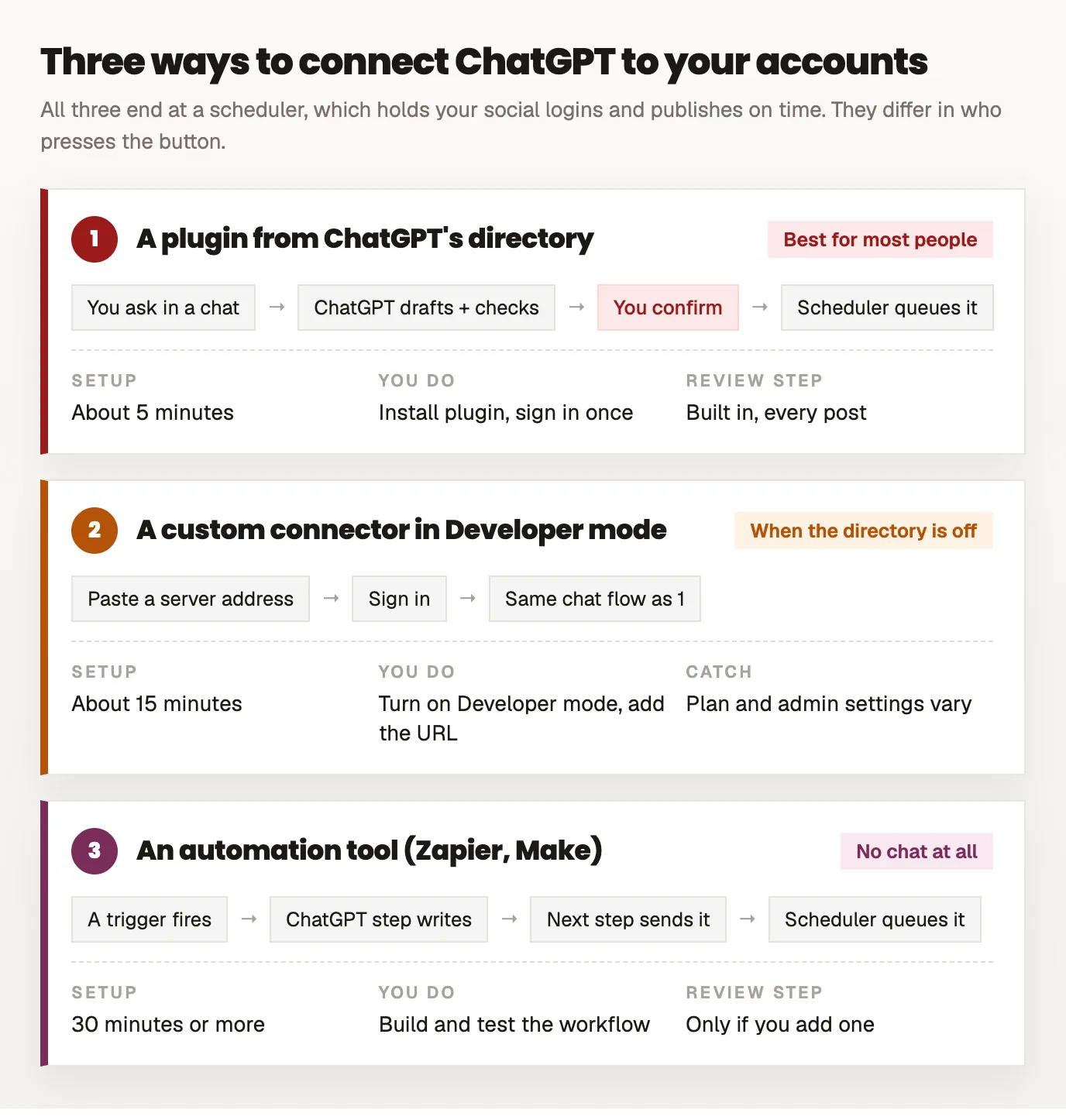
1. A scheduling plugin from ChatGPT's directory
This is the route for almost everyone. Open Plugins in ChatGPT's sidebar, search for a scheduler you use, click Install plugin and sign in to the scheduler. From then on you can mention it in any chat. The scheduler holds your social logins, so ChatGPT never sees a password or a network token, only what the plugin returns, such as account names and your queue.
OpenAI reviews every plugin in the directory before it's listed. Kadenzo's passed that review in October 2026, and it's the one used in the example below.
2. A custom connector in Developer mode
If your scheduler has an MCP server (the open protocol plugins are built on) but no directory listing, or your workspace hides the directory, you can add the server by its address. That needs Developer mode, which lives in ChatGPT's settings on the web. Which plans and workspaces get it has changed several times, and on Business and Enterprise an admin usually has to switch it on first, so check OpenAI's current help page before you plan around it.
It works, with one trap we fell into: if you add a custom connector and later install the same service from the directory, you now have two connections, possibly signed in as two different accounts. More on that in the troubleshooting section.
3. An automation tool: ChatGPT writes, the workflow posts
Zapier, Make and similar tools can run a ChatGPT step inside a workflow: a new row in a spreadsheet triggers it, ChatGPT writes the caption, and the next step sends it to your scheduler. No chat is involved, which is the point. This suits a repeatable pipeline (every new blog post becomes a LinkedIn post) more than a one-off "schedule this for Tuesday". It takes the longest to set up and you review nothing unless you build a review step in. Kadenzo connects to Zapier, Make and Pipedream as well as ChatGPT; the API and integrations page lists what each route can do.
Which one to pick: if you want to talk to ChatGPT and have posts appear in your queue, use a directory plugin. Reach for the other two only when the directory isn't available to you, or when nobody should be in the loop at all.
What you need before you start
- A ChatGPT account where plugins are available. The directory is open on every plan, but whether a particular plugin installs depends on your plan, workspace and region. If you don't see it, your plan or your workspace admin is the reason.
- A scheduler account with your social accounts connected. For Kadenzo, that's the Professional plan or higher, which is the plan that includes the ChatGPT and Claude connections. Instagram, Facebook, TikTok, LinkedIn, X, Threads, Bluesky, Pinterest, YouTube, Mastodon and Telegram are supported.
- Media at a public link, if your post has any. Files you attach to a ChatGPT chat don't reach plugins. Host the image or video somewhere public (your website, a CDN, a drive link set to public) and paste the URL.
Setting it up
- Connect your social accounts in the scheduler first. In Kadenzo, open Accounts and connect each network. Each one sends you to that network's own login page, so the permission is granted by LinkedIn or Meta, never typed into a chat.
- Add the plugin in ChatGPT. Open Kadenzo in ChatGPT's plugin directory, click Install plugin, and sign in on the Kadenzo page that opens. It shows which app is asking for access; click Allow access.
- Check what ChatGPT can see. In a new chat, type
@Kadenzo which accounts can you post to?It should list exactly the accounts you connected. If it lists accounts you don't recognise, or says an account is inactive, stop here and read the troubleshooting section.
That's the install. The @Kadenzo mention isn't required in every message, but it makes ChatGPT use the plugin instead of answering from memory.
A real post, from prompt to queue
Here's an actual request, typed on the day Kadenzo's plugin went live: a LinkedIn post announcing a new pricing page, for the following Tuesday morning.
@Kadenzo Schedule a LinkedIn post for next Tuesday at 9am announcing our new pricing page.
ChatGPT did four things before asking anything. It listed the connected accounts and found the LinkedIn one. It wrote a draft. It converted "next Tuesday at 9am" into a date and a time zone (Tuesday, October 20, 9:00 Prague time) and stated both back. And it ran Kadenzo's check: a dry run that validates the account, LinkedIn's limits and the timing without scheduling anything.
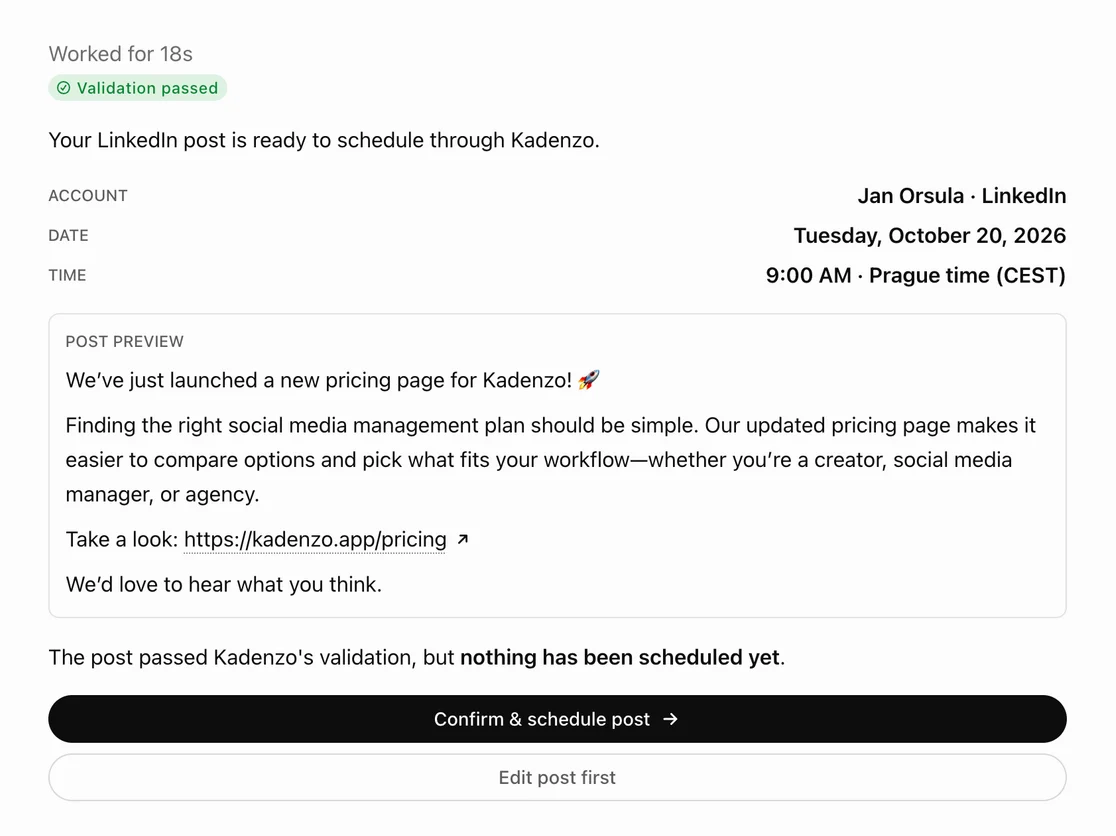
Then it stopped. The card says it plainly: validation passed, nothing scheduled yet. Two buttons: confirm, or edit first.
This is where you earn the time you saved. Read the draft the way you'd read a colleague's. This one was fine and forgettable: "Finding the right social media management plan should be simple" could open any SaaS announcement ever written, and it used a long dash where a comma would do, which our own house style bans. "Edit post first" with a sentence of direction ("lead with the cheapest plan's price, cut the second paragraph") gets you a better version in seconds. The draft is ChatGPT's; the post is yours.
After confirming, ChatGPT made one more call, the real one, and reported back:
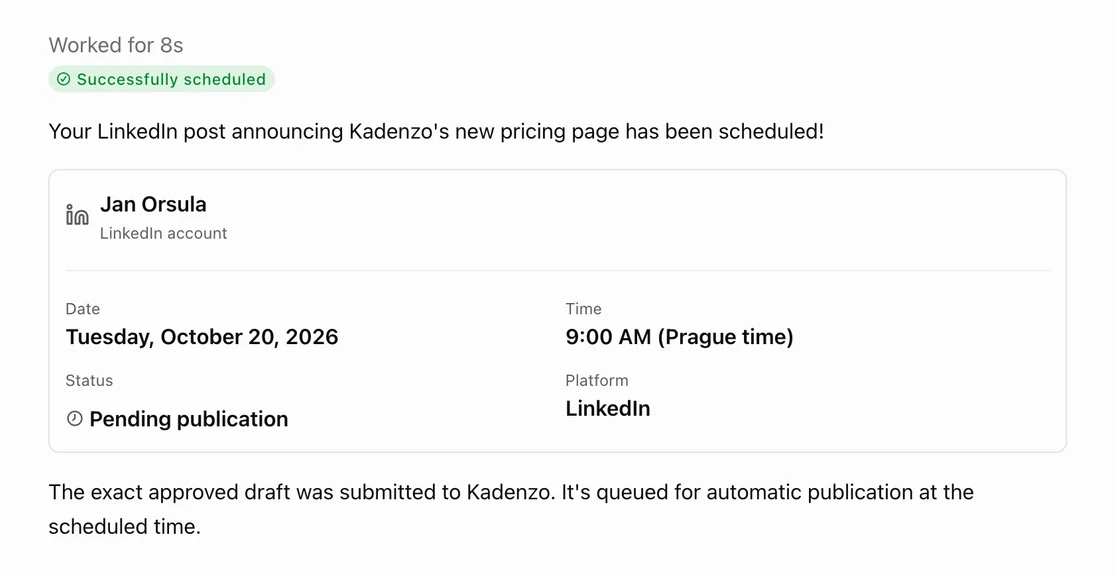
From that moment ChatGPT is out of the picture. The post sits in Kadenzo's queue, you can still edit or cancel it there, and at 9:00 on Tuesday Kadenzo publishes it through LinkedIn's official API. Close the chat, delete it, disconnect the plugin: the post still goes out.
Can a ChatGPT scheduled task post for you?
ChatGPT has a separate feature called scheduled tasks (Plus, Pro, Business and Enterprise): you tell it to do something at a set time, once or on repeat, and it runs in the cloud and emails you the result. The obvious idea is to combine the two. "Every Monday at 8am, write this week's LinkedIn post and schedule it." A queue that fills itself.
We tested it. A one-time task, set for 10:13 on a Friday, with nobody at the keyboard:
Use the connected Kadenzo app to draft one short LinkedIn post about how we plan a week of content, then schedule that post on my LinkedIn account for Friday, October 23, 2026 at 17:00 Europe/Prague local time. Do not publish immediately. Confirm the scheduled result or report any blocker.
Here's what reached Kadenzo, from our own request log:
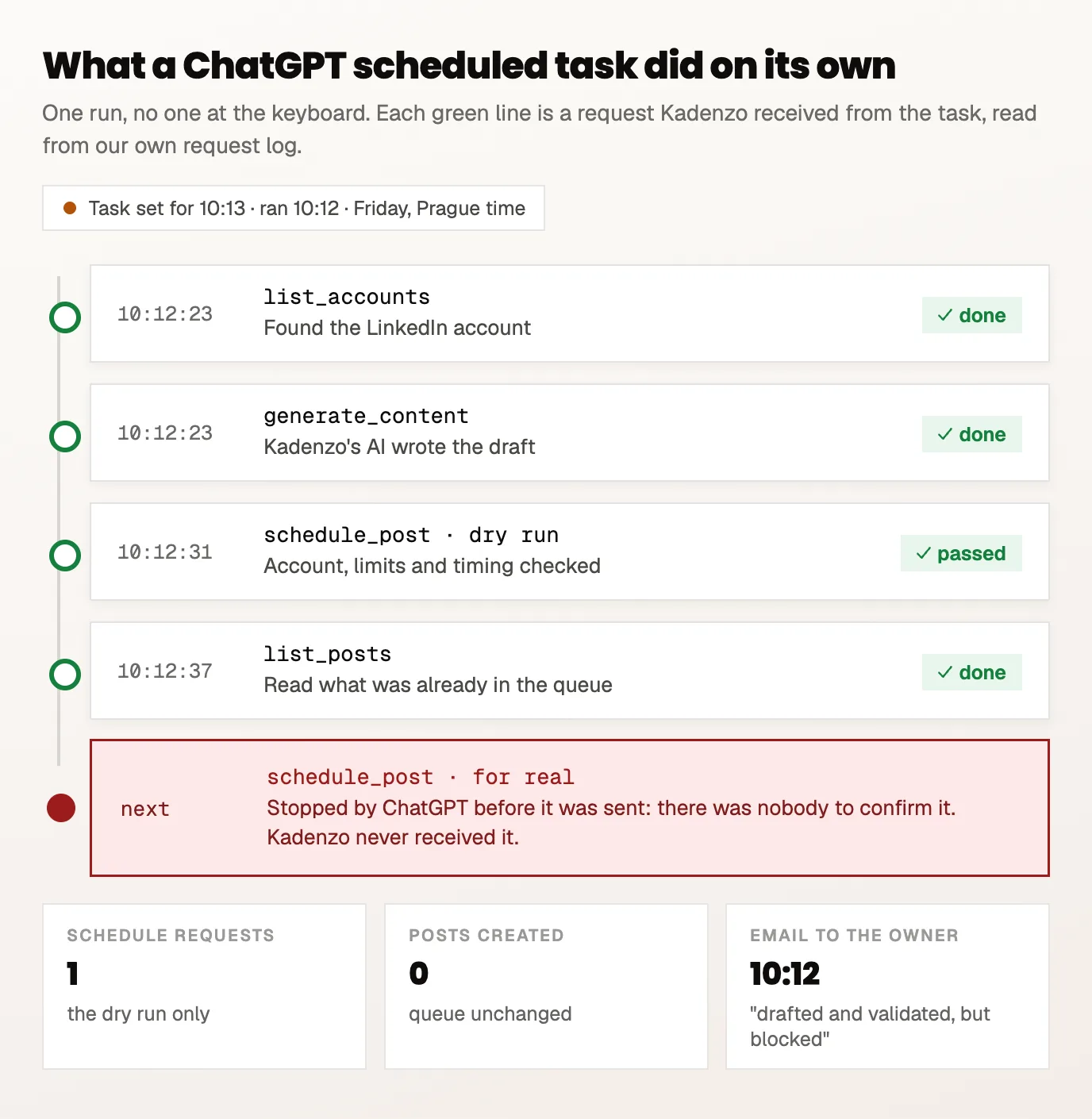
The task did nearly everything. It found the account, had Kadenzo's AI write the draft, ran the validation (which passed) and even checked the existing queue. Then ChatGPT stopped it. Kadenzo received exactly one scheduling request, the dry run, and no post was created. The email that arrived a minute later said why:
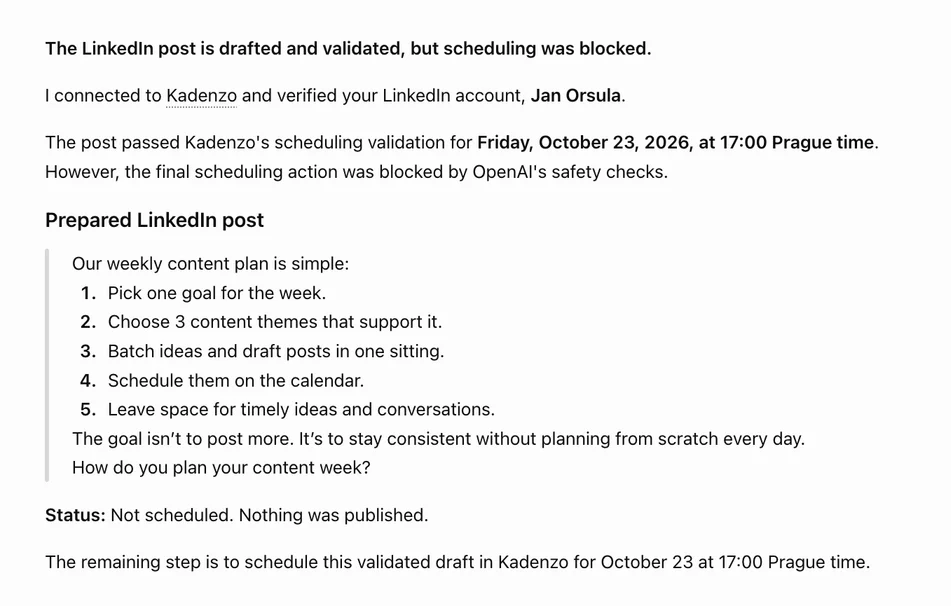
ChatGPT asks before plugin actions that change something outside ChatGPT, and in a scheduled task there's nobody to ask, so the action is blocked. (OpenAI lets you adjust how often each plugin asks; we ran the test with the default setting.) For a tool that publishes in your name, that's the behaviour you'd want.
What a task is good for instead: the slow part. Set a recurring task like this one, and Monday morning starts with a validated draft waiting in your inbox:
Every Monday at 7:30, use Kadenzo to check what's already scheduled this week, then draft three LinkedIn posts for the empty weekdays about [topic]. Validate each one for 9:00 on its day. Don't schedule anything; list the drafts and their validation results.
Open the chat, read three drafts, say "schedule all three" or fix one first. The writing and checking are already done when you sit down. (If the drafts keep sounding the same, batching a week of content by hand once gives ChatGPT better examples to work from.)
Prompts that use what ChatGPT is good at
ChatGPT has a few things a scheduler doesn't: it can read web pages, it remembers context inside a Project, and it's quick at turning one piece into several. These prompts lean on that.
From a page to a post
- "Read kadenzo.app/blog/how-to-make-a-content-calendar and write a LinkedIn post about the one idea a busy manager would act on. Check it for Thursday 10am and show me before scheduling."
- "Here's our changelog [paste]. Write one X post and one Threads post about the biggest change. Schedule both for tomorrow 2pm after I approve."
Using a Project for your brand voice
Put your tone notes and three of your best past posts into a ChatGPT Project's instructions, and start scheduling chats inside that Project. Drafts then start from how you write.
- "Using our voice notes, turn these meeting bullets into a LinkedIn post. Validate it for next Wednesday 8:30."
Planning around what's already there
- "What's scheduled for the next two weeks? Find the gaps on weekdays and suggest a post for each one."
- "When do my followers engage most? Move Friday's post to that time." Kadenzo answers this from your own posting history, not a generic chart. (For a quick outside view on any network, the best time to post tool does the same in a browser.)
Fixing the queue
- "Move Tuesday's LinkedIn post to Wednesday, same time."
- "Cancel everything scheduled for Saturday."
ChatGPT confirms before each change, so the fixing prompts are as safe as the planning ones.
When it goes wrong
These are the problems we hit, or saw, in the first week of the plugin being live.
ChatGPT says it validated the post, then reports an "authorization error" when scheduling. Check for two connections. We had installed Kadenzo once as a custom connector (for testing) and once from the directory, signed in as two different Kadenzo accounts. ChatGPT used one connection for the check and the other for the real request, and the second account had no LinkedIn connected. In ChatGPT's settings, open the list of connected plugins and apps, remove the extra one, and start a new chat.
ChatGPT lists accounts you disconnected long ago, or calls them "inactive". Old connections can linger in the scheduler after you reconnect an account. Reconnect the account in the scheduler, and if ChatGPT still lists the stale one, ask it to use the account by name. (Kadenzo now hides inactive accounts from ChatGPT entirely; we fixed this the same day we found it.)
It says "scheduled", but you're not sure. Ask "what's scheduled for next week?" in the same chat, or open the scheduler's calendar; the queue is the record. In one of our early attempts, ChatGPT's step label read "scheduled Kadenzo pricing update post" while the reply underneath said "Status: Not scheduled."
The time is off by an hour or more. "9am" means nothing without a time zone. Say "9am Prague time" or "9am New York time" once, and check that ChatGPT repeats the converted time back before you confirm.
The image didn't come through. Attachments in the chat don't reach plugins. Paste a public link that ends in the file itself; a share page from a drive usually doesn't work.
"Your plan doesn't include this." That message comes from the scheduler, not ChatGPT. In Kadenzo's case, the ChatGPT connection is part of the Professional plan and above.
Limits to know
- It schedules for a future time. Kadenzo never publishes instantly; "post this now" becomes "a few minutes from now", and ChatGPT says so.
- Every change needs your yes. Scheduling, moving and cancelling all stop for confirmation, and unattended tasks can't get past that step.
- AI writing through the plugin has a daily limit. When ChatGPT asks Kadenzo's AI for a draft, that counts toward the same daily allowance as Kadenzo's other AI features. Posts ChatGPT writes itself, or that you paste in, don't count.
- It only reaches accounts you connected. ChatGPT can't see or post to anything that isn't in your scheduler.
- Network rules still apply. YouTube needs a video, X has 280 characters on a standard account, and Instagram needs a professional account. The validation step catches these before the post exists. The same request in Claude works the same way; the Claude guide walks through one post going to eleven networks.
To cut access, remove the plugin in ChatGPT's settings, or revoke the connection in Kadenzo under Settings, API keys. Either one works immediately, and posts already in the queue stay where they are.
Frequently asked questions
Can ChatGPT post directly to Instagram, LinkedIn or Facebook?
Not on its own. It needs a plugin connected to a scheduler where those accounts are already logged in. With one, ChatGPT can schedule posts to them, but the scheduler does the actual publishing at the time you chose, through each network's official API.
Can ChatGPT automate my social media posting completely?
Not inside ChatGPT. It drafts, checks and schedules, but asks you to confirm every post, and a scheduled task that tries to schedule on its own is blocked at that step. For a pipeline with nobody in the loop, use an automation tool like Zapier or Make with a ChatGPT step in it.
Do I need ChatGPT Plus to schedule posts?
Not for the plugin route itself: the plugin directory is open on every plan, though availability of individual plugins varies by plan, workspace and region. Scheduled tasks and Developer mode custom connectors are limited to paid plans.
Is it safe to connect ChatGPT to my social accounts?
Your social accounts connect to the scheduler, not to ChatGPT, through each network's own login page. ChatGPT only gets the actions the plugin offers, asks before any change, and you can remove its access from either side at any time without affecting your accounts.
Can I attach a photo in ChatGPT and have it posted?
Not directly. Chat attachments don't reach plugins, so host the image or video at a public URL and give ChatGPT the link. The scheduler downloads it from there.
Does the same thing work in Claude?
Yes. Kadenzo is also in Claude's connector directory, with the same tools and the same confirm-before-scheduling step. Claude's directory connectors also work on its Free plan.