
How to Make a LinkedIn Carousel (That Gets Read)
June 12, 2026 · 7 min read · by Jan Oršula
A LinkedIn carousel is a document post, a multi-page PDF that LinkedIn renders as swipeable slides in the feed. There's no separate "carousel" button; you upload a PDF through the document option, and each page becomes a card people swipe through. That swiping is the whole point: it keeps someone on your post far longer than a text update, and dwell time is one of the clearest signals that pushes a post into more feeds. This guide covers how to make one: the cover that earns the swipe, the one-idea-per-slide rule, the right size, and how to post it.
What a LinkedIn carousel actually is
Worth being precise, because it shapes everything else: LinkedIn has no native carousel format for organic posts. What everyone calls a carousel is a document post, and documents are PDFs. Each PDF page is a slide. That's why the file you make is a PDF, not a set of images, and it's why an Instagram carousel (which is images) won't upload to LinkedIn and vice versa. The container is different even though the idea is the same.
The reason carousels punch above their weight is mechanical. A text post is read in one glance and scrolled past. A carousel asks for a swipe, then another, then another, and every swipe is time spent on your post. LinkedIn reads that engagement and dwell time as "people find this valuable" and shows it to more of your network. You're not gaming anything; you're giving people a format they'll actually spend time with.
How to make a LinkedIn carousel, step by step
The work splits cleanly into thinking and formatting. Do them in that order:
- Draft the whole thing as text first. Write the full argument as one piece, the way you'd write a normal post. Don't think in slides yet; think in the point you're making. A carousel with nothing to say is just nicely formatted filler.
- Write the cover as a separate hook. The first slide isn't slide one of your content; it's the ad for the rest. More on that below.
- Cut the body into one idea per slide. Each card carries a single point, in as few words as it takes. If a slide needs a paragraph, it's two slides.
- Export it as a PDF at the right size (square or 4:5, see below).
- Post it as a document. In the LinkedIn composer, start a post and choose the document option (the one for adding a document, not a photo or video), upload the PDF, and give the post a title that pulls people in, because that title sits above the carousel in the feed.
Doing it in the carousel maker
The splitting and sequencing is the fiddly part to do by hand, which is what our LinkedIn carousel maker is for. It runs in your browser and nothing is uploaded. Here's the same process, step by step:
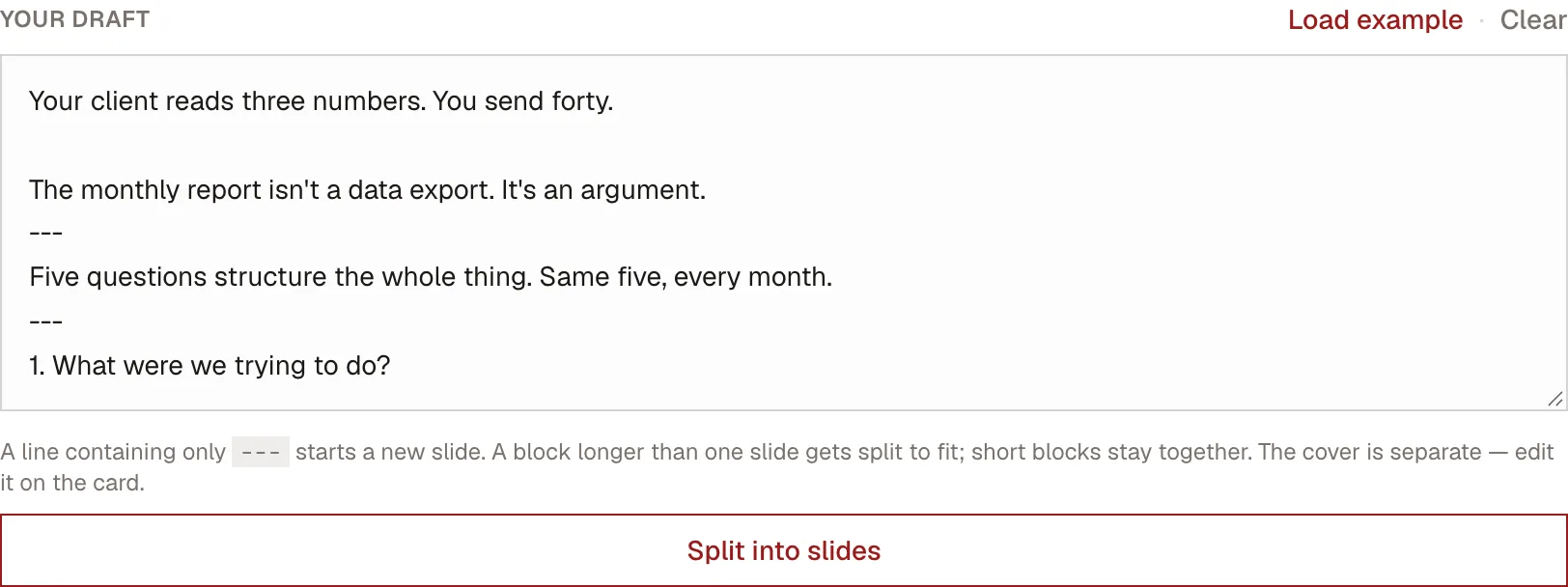
- Paste the draft and mark the breaks. Paste the whole text from step 1
above. Wherever you want a new slide to start, put a line containing only
three dashes (
---). You don't have to mark everything: a block too long for one slide gets split to fit, and short blocks stay together.
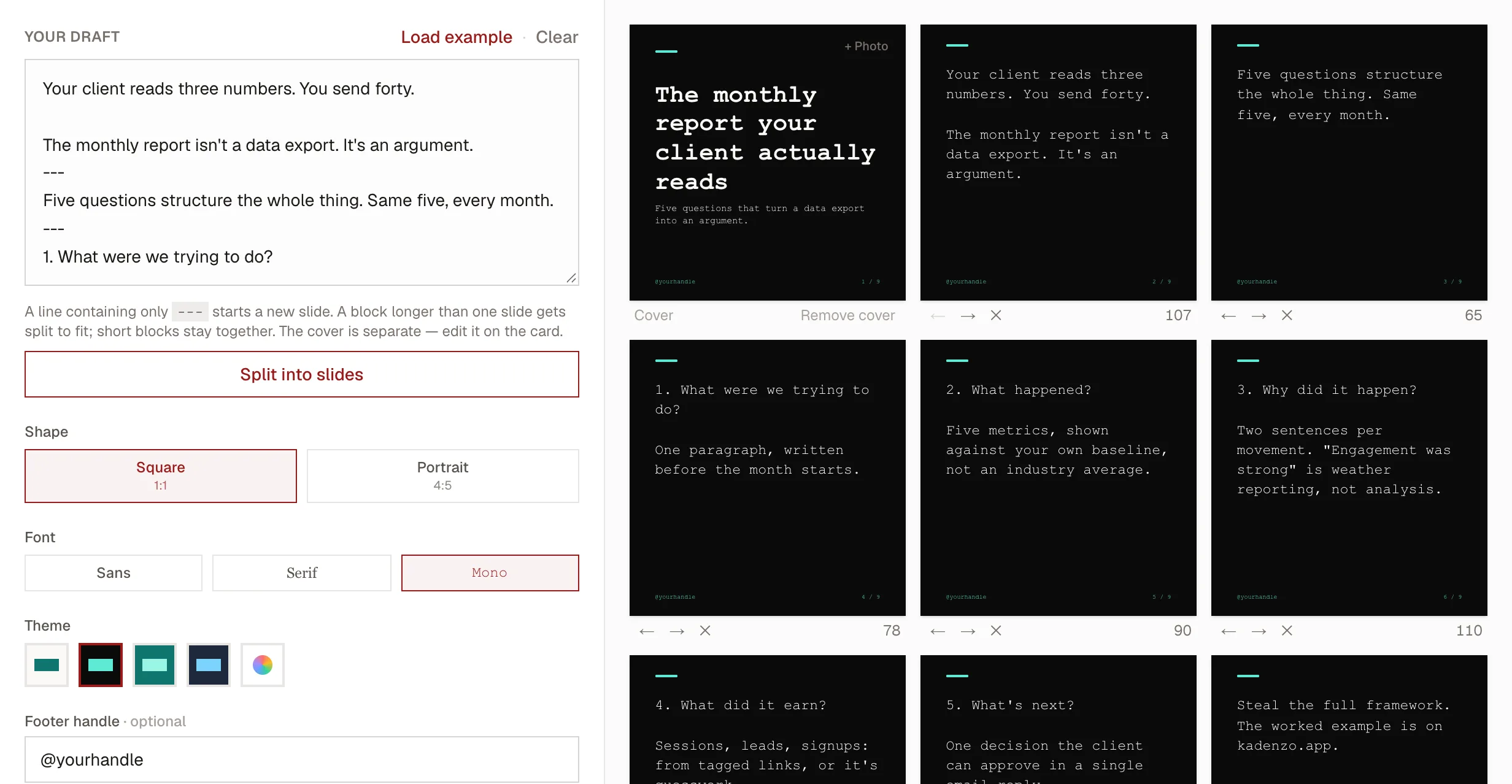
- Split it and check every card. Click Split into slides. Each card shows its character count, arrows to move it, and a cross to delete it, and you can edit the text on the card itself. This is where you apply the one-idea-per-slide rule: if a card is crowded, split it in the draft and run it again.
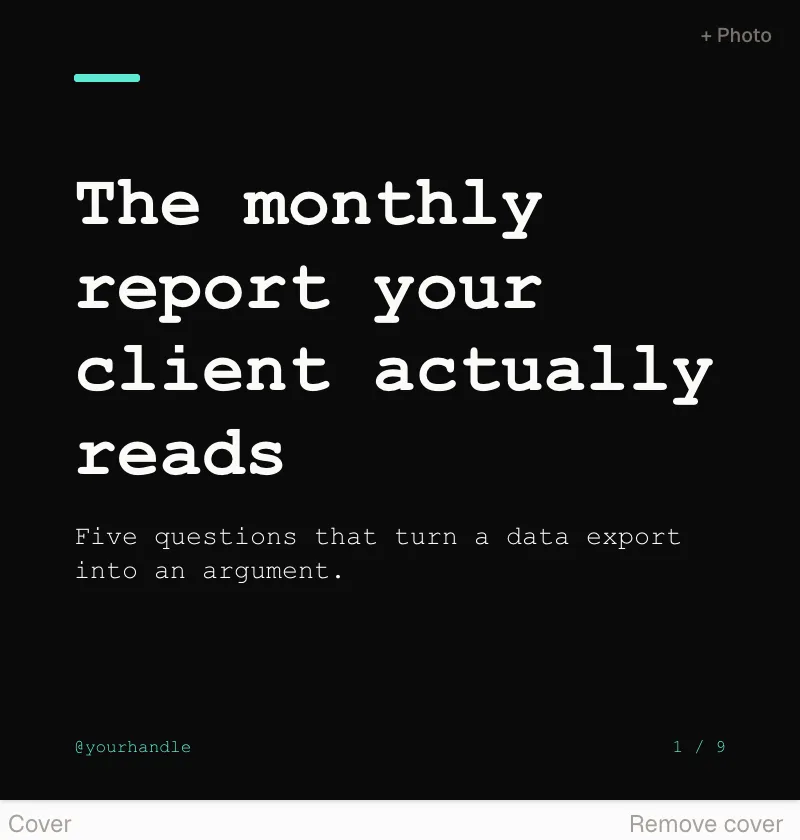
- Write the cover on its own card. The cover isn't taken from your draft. You type its title and one-line promise straight onto the card, which keeps you treating it as the ad from step 2, not as slide one of the argument. Add a photo with + Photo if an image does a job the words can't.
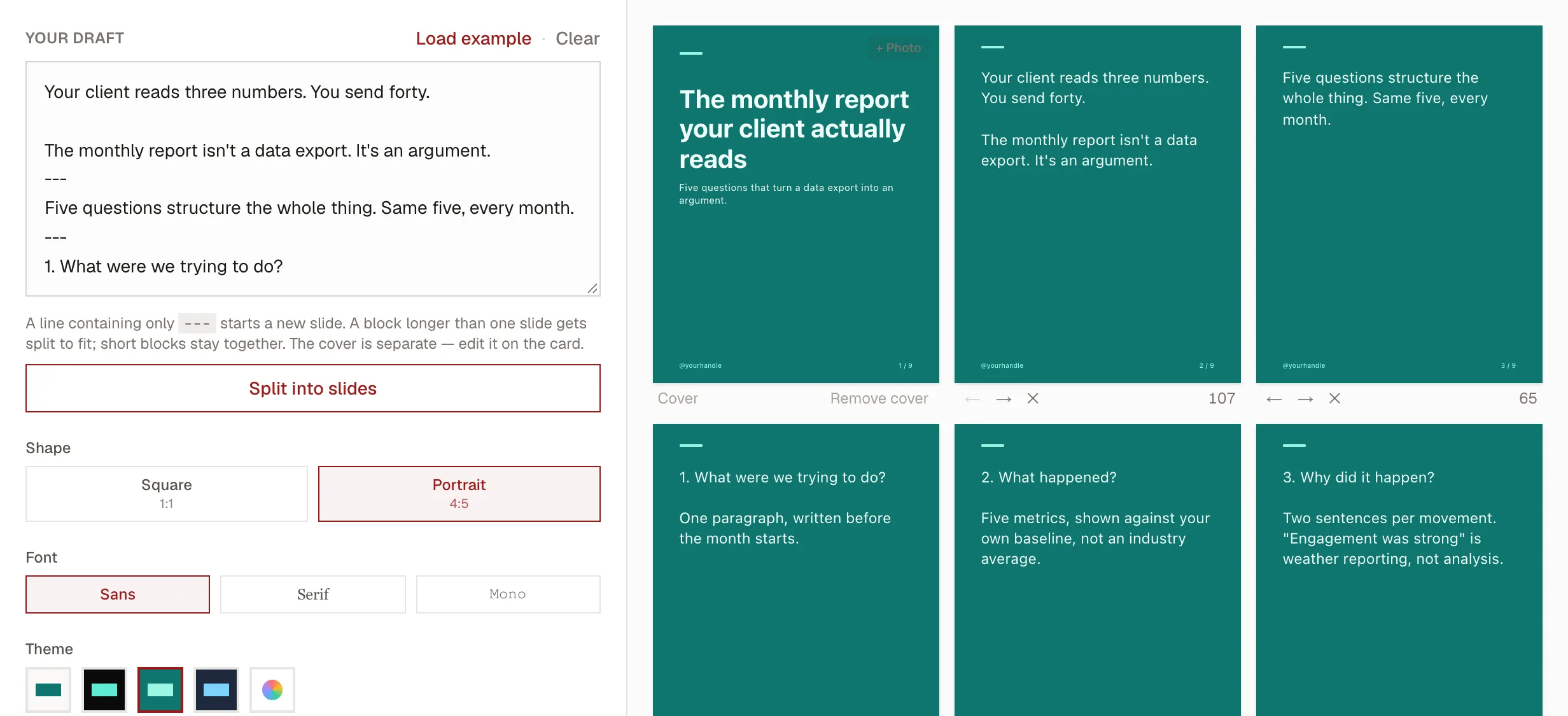
- Pick the shape, font and theme. Choose Square (1:1) or Portrait (4:5) using the size advice below, a font, and a colour theme. Every slide restyles at once, so you can compare looks in seconds.
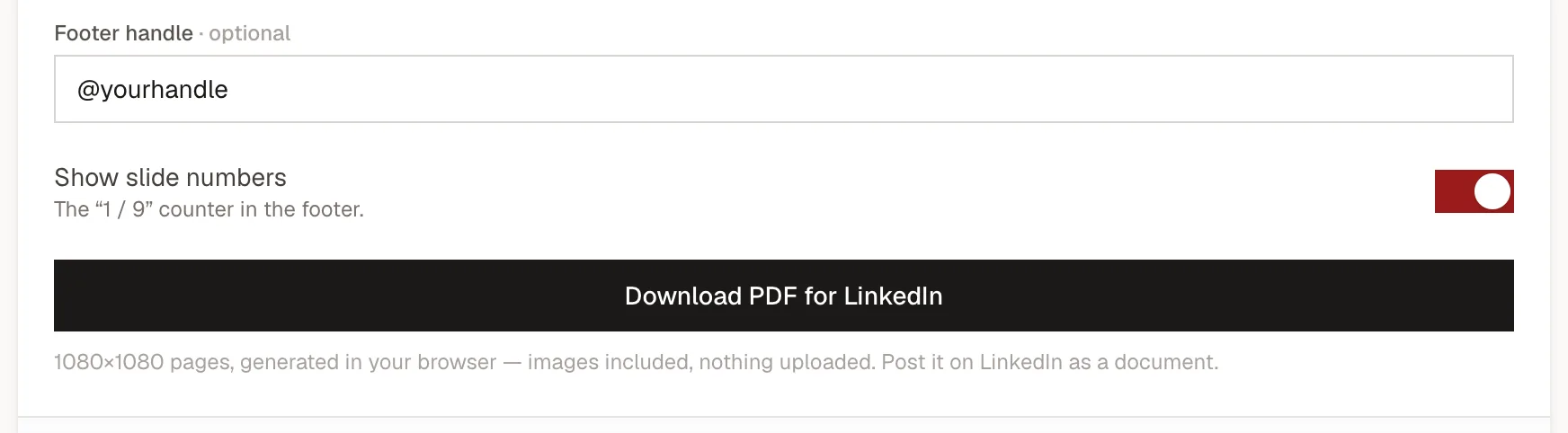
- Download the PDF and post it. Add your handle for the footer, keep the slide numbers on (people finish what they can see the end of), and click Download PDF for LinkedIn. Then post it as a document, as in step 5 above.
The cover earns the swipe, so treat it as the ad
If the cover doesn't stop the scroll, nothing behind it matters, because nobody sees it. So the first slide gets the same care as the first line of any post: it's a hook, not a title. Make it a number, a tension, or a claim that demands resolving: "The 5-slide structure I use for every post," "Most LinkedIn carousels fail for one reason," "I grew a newsletter to 10k with this exact framework." The cover's job is to promise something specific the swipe will deliver. (The same patterns that power a good post hook work here; a carousel cover is just a hook with a swipe attached.)
Two cover mistakes kill more carousels than anything else: a vague, brand-y title that promises nothing ("Thoughts on leadership"), and a cover so busy with logos and stock art that the words get lost. Big text, clear promise, minimal decoration.
If you draft with an AI assistant, ask it for three covers from different angles and pick one, rather than polishing the first. Our guide to making carousels with Claude has the prompt for it, and works for LinkedIn as much as Instagram.
One idea per slide, and slow the swipe
Inside the carousel, the rule that does the most work is one idea per slide. A reader is swiping, not studying. A slide crammed with a paragraph gets skipped, and a skipped slide breaks the chain. Give each card a single point in a handful of words, and let the white space breathe. Eight clean slides beat four dense ones.
A few habits that keep people swiping to the end:
- Open a loop on the cover and close it on the last slide. "Here's the framework" → the framework, payoff last.
- Number the slides (1/8, 2/8). People finish things they can see the end of.
- Make the last slide a single call to action: follow for more, comment a word, grab the template. One ask, not three.
- Don't fill slides with stock photos. Images should do a job the text can't, like a chart, a screenshot, or a quote graphic. A carousel that's all stock imagery reads as filler.
The right size for a LinkedIn carousel
Two shapes work, and the choice is about where your audience reads:
- Square, 1080×1080 (1:1): the safe default. It renders fully in feed on every device, desktop and mobile alike. For most B2B accounts this is the right call.
- Portrait, 1080×1350 (4:5): buys more vertical height on mobile, so it takes up more screen as someone scrolls a phone. The trade-off is more awkward desktop rendering, so reach for it only if your audience skews heavily mobile.
Whichever you pick, keep the type large and the margins generous. These are read at thumbnail size in a busy feed, not on a slide projector. Helvetica or any clean sans-serif at a size that's almost too big is the safe bet.
The mistakes that sink a carousel
Most failed carousels share the same handful of problems: a cover that promises nothing, slides so dense nobody swipes past the second one, no call to action at the end, and stock photos standing in for an actual point. Fix those and you're most of the way there. And remember the order that matters: the design is the easy part; the slide-by-slide argument is the work. Get the thinking right first, then make it look good.
From draft to posted
Put it together: write the whole idea as text, sharpen the cover into a hook, cut the body to one idea per slide, export a square PDF, and upload it as a document with a title that earns the click. If you want the splitting and the PDF handled for you, start in the LinkedIn carousel maker. And since the slide sequence you build there is platform-agnostic, it doubles as the outline for an Instagram carousel when you repurpose the idea across feeds.