
GA4 for Social Media Teams: A 30-Minute Setup
June 11, 2026 · 8 min read · by Jan Oršula
Out of the box, GA4 answers almost none of the questions a social media team actually has. Your traffic hides across "Organic Social," "Unassigned," and "Referral"; the default reports are built for e-commerce funnels; and the one number a client wants (what did our channels earn this month) isn't on any default screen. The fix doesn't require an analyst. It's three steps, about thirty minutes: a tagging convention before anything else, three settings inside GA4, and one saved exploration report you'll reopen every month. This guide walks through each, in order.
What GA4 does to social traffic when you do nothing
GA4 classifies every session into a channel by pattern-matching its source and medium against Google's default channel definitions. Untagged social clicks arrive with whatever the platform passes along: sometimes a recognizable referrer, often nothing at all. The result is the familiar mess: some Instagram traffic lands in Organic Social, link-in-bio clicks show up as Referral, in-app browser visits with stripped referrers fall into Direct, and anything with a creative-but-unrecognized medium becomes Unassigned. None of it is wrong, exactly. It's just unanswerable, because you can't report on a channel that's scattered across four buckets.
The order of operations matters because of this: GA4 settings can't fix untagged traffic. Classification happens at collection time, using whatever parameters the click carried. Which is why step one isn't in GA4 at all.
Step 1: the tagging convention (10 minutes, done once)
Every link you publish gets UTM parameters from a fixed vocabulary: one
source per platform, social or paid-social as the medium, one campaign
name per initiative, lowercase and dashes everywhere. Our
UTM builder encodes the whole convention, including
a campaign-set mode that generates every channel's link at once and
previews which GA4 channel each will land in. So the practical version of
this step is: build links there, always, and never hand-type a parameter
again.
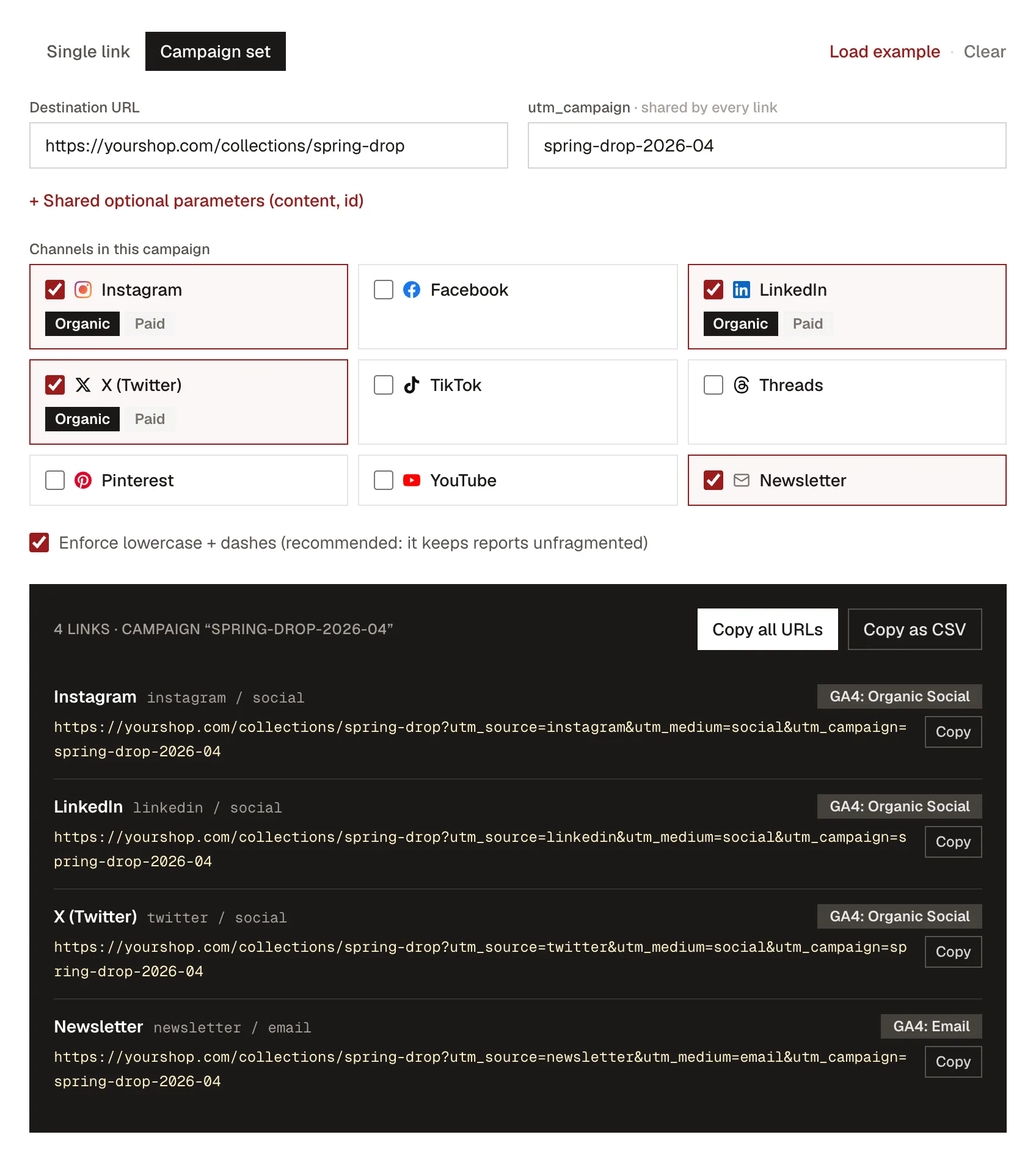
Two rules carry most of the value. Split organic from paid at the medium, never the source, so platform rollups survive. And never tag links that point within your own site. Internal tags overwrite the session's real origin and quietly corrupt the report you're about to build.
Step 2: three settings worth changing (10 minutes)
GA4 has hundreds of settings; social teams need three. All live under Admin, and the paths below are current as of mid-2026.
- Data retention: 2 → 14 months (Admin → Data settings → Data retention). The default keeps event-level data for two months, which means explorations silently lose history. There is no reason to keep the default; this is the single most common GA4 regret.
- Filter your own team out (Admin → Data settings → Data filters, after defining internal traffic under Data streams → Configure tag settings). A five-person team checking links daily inflates a small account's social numbers badly, and your own QA clicks on freshly tagged links are the worst offenders.
- Mark one or two events as key events (Admin → Events). A key event is whatever the site exists to produce: a signup, a lead form, a purchase. Without at least one, the report in step three can only count sessions, and "what did social earn" stays unanswerable. Pick the event that matters and toggle it; resist marking ten.
Step 3: the one report that matters (10 minutes)
Default reports bury social under aggregated channel groups. Build this exploration once and pin it:
-
Open Explore → Blank, name it "Social sessions & key events."
-
Date range: last calendar month.
-
Dimensions: Session source / medium and Session campaign. Metrics: Sessions, Key events, and Total revenue if you have it.
-
Drag Session source / medium into rows, the metrics into values.
-
Add a filter: Session medium matches regex
social|paid-social. Your tagging convention from step one is what makes this single filter catch everything.The other way to clean this up is a custom channel group (Admin → Data settings → Channel groups), where you rewrite the channel rules so your tagged mediums always roll into one Social channel. It works, but the tag-first, filter-in-the-exploration route above is more robust and less brittle. Remapped channel definitions apply inconsistently to historical data and quietly break when Google revises its defaults, whereas a regex filter on your own mediums keeps behaving the same.
-
Add Session campaign as a second row dimension to break performance out per initiative.
That's the whole report: every social channel, organic and paid side by side, sessions and outcomes per campaign, on one screen. It's the table your monthly report's traffic section is built from, assembled in one click instead of an afternoon of spreadsheet archaeology.
Reading it honestly
Three caveats keep the numbers defensible. Scope: session-scoped dimensions credit the campaign that started that visit; first-user dimensions credit whatever brought the person the first time ever. Report session-scoped for monthly channel performance, and don't mix the two in one table. Attribution: GA4's default model gives most credit to the last meaningful click, and social is usually early in the journey. Your channels seed demand that search later harvests, so treat these numbers as a floor, not the ceiling. Dark social: links forwarded through DMs and group chats often arrive stripped of everything and land in Direct. The undercount is real and unfixable; say so in the report footnote rather than pretending precision.
What to skip
Realtime (entertaining, decision-free), the default Acquisition overview cards (aggregated past usefulness), predictive audiences (needs volume most social-led sites don't have), and dashboard tools layered on top. Until the exploration above feels limiting, it won't be the bottleneck. Thirty minutes, three steps, and the next time someone asks what social actually earned, the answer is one saved report away.