
Facebook Messenger Automated Response Not Working? Check These 8 Things
October 23, 2026 · 7 min read · by Jan Oršula
When a Facebook Page's automated response doesn't fire, the setup is usually fine and the test is wrong. Automated responses generally don't trigger when someone who manages the Page messages it, and an instant reply only answers the first message in a conversation, so a second test from the same account gets nothing either. If a clean test still fails, the cause is almost always one of six settings: the Page is set to Away, the automation is switched off for Facebook, messaging is turned off for the Page, another app controls the conversation, a keyword doesn't match what people type, or the person who set it up lacks the access to save it. Here's each one, in the order worth checking.
Before anything else: test it properly
Most "it's broken" reports come from a test that could never have worked. A reliable test needs three things:
- An account with no role on the Page. A friend's account, or a second personal account. Messages from Page admins and other people with access usually don't get automated replies.
- A conversation that has never existed. An instant reply answers the first message someone sends your business. If the test account has ever messaged the Page, use a different account.
- The right channel. Messenger and Instagram have separate toggles in the same automations screen. A test sent to the Page's Instagram account tells you nothing about the Facebook setting.
If that test gets a reply, everything is working, including for the customers who said it wasn't. If it doesn't, work down the list.
The eight causes, in order
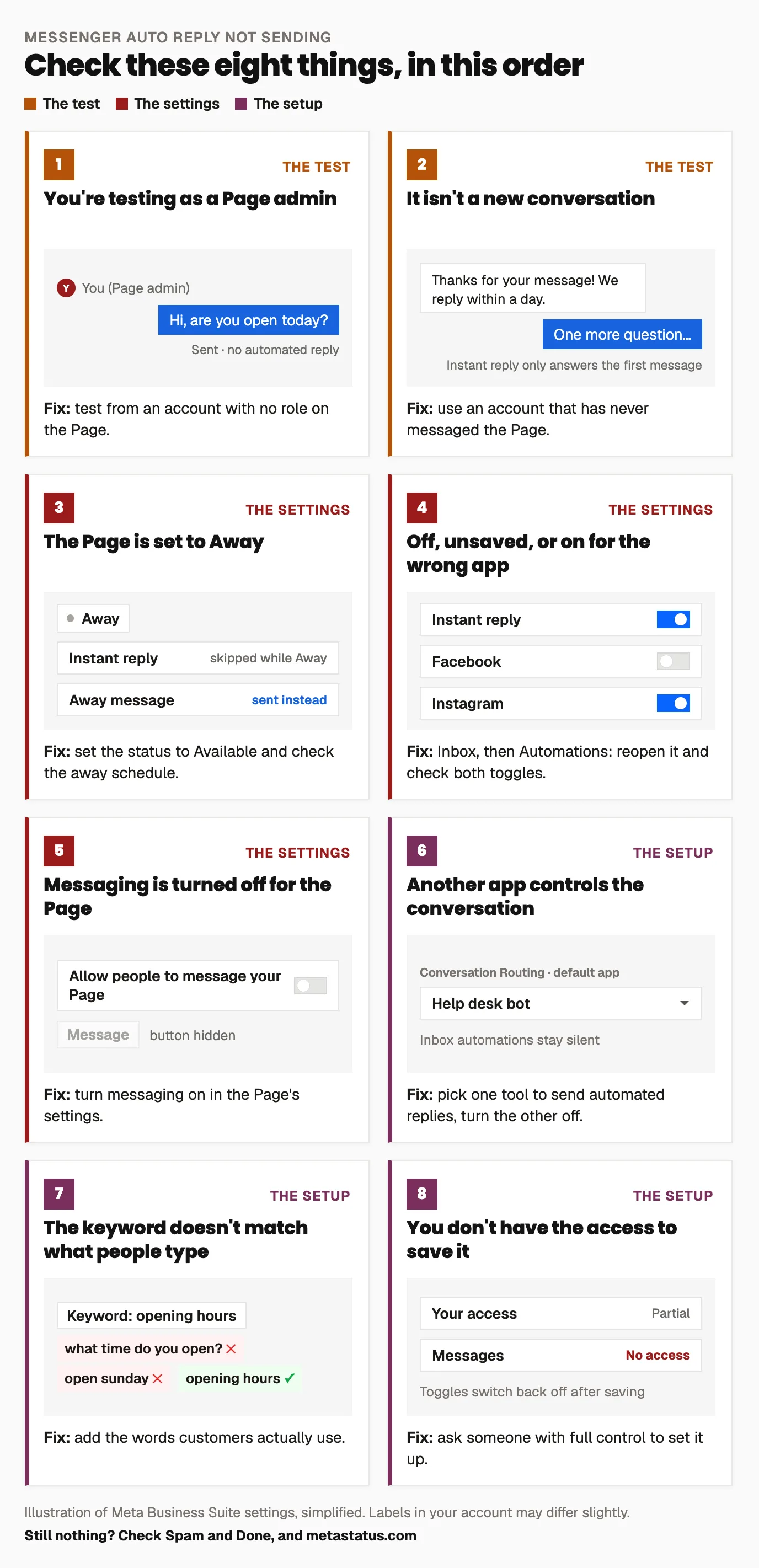
1. You're testing from an account that manages the Page
Covered above, but it's first because it's the most common by far. If you're an admin, editor or have any task access, your own messages won't show you what customers see.
2. It isn't a new conversation
The instant reply is a greeting for first contact. Someone who messaged last month and writes again today is continuing a conversation, so they won't get it again. That's intended behavior, and for repeat customers it's usually what you want. If you need a reply on every message (outside hours, for example), that's the job of the away message.
3. The Page is set to Away
An instant reply isn't sent while the Page's status is Away; the away message is sent instead. If someone set the Page to Away during a holiday and never switched it back, the instant reply you so carefully wrote will never appear. Check the availability status at the top of the Meta Business Suite inbox, and check whether an away schedule is set that covers more hours than you think.
4. The automation is off, unsaved, or on for the wrong channel
In Meta Business Suite, open Inbox, then Automations. Each automation has its own on/off switch and separate toggles for Facebook and Instagram. It's easy to write the message, close the panel and never save, or to switch on Instagram and leave Facebook off. Open the automation again and confirm the message you wrote is actually the one stored.
5. Messaging is turned off for the Page
If the Page doesn't allow messages, there's no conversation for an automation to answer, and the Message button may not appear at all. Meta's help page on turning messaging on or off shows where the setting lives.
6. Another app controls the conversation
This is the one most guides miss. If you've ever connected a chatbot, a CRM, a help desk or a DM automation tool to the Page, that app may be set as the default handler for new conversations. When it is, the Business Suite inbox doesn't own the thread, so its automations stay silent. Meta replaced the old handover protocol with Conversation Routing, configured on the Conversation Routing tab of the Page's settings.
Pick one place to automate from. Either set the Business Suite inbox as the default app and switch off the other tool's automations, or let the connected tool handle automated replies and turn off the inbox ones. Running both is how you end up with no reply, or two different ones.
7. A keyword rule doesn't match what people type
Keyword-triggered replies only fire on the words you entered, and each keyword can belong to only one rule. "Opening hours" won't catch "what time do you open?" or "are you open sunday". Look at real messages from the last month and add the words customers actually use, including plurals and the short forms people type on phones. Then test each keyword from your no-role account.
8. The person setting it up doesn't have the access to save it
Automations need messaging access to the Page. Someone with partial access can sometimes open the screen and edit a draft, but the change doesn't stick. If the switches keep turning themselves off, ask someone with full control to make the change, or to give you the right task access.
Still nothing? Two last checks
Look in the other folders. If the reply was sent but you're looking for it in the main inbox, it may be sitting in Done, Spam, or a filtered view. The customer's side of the chat is the real test, which is another reason to test from a second account.
Check whether Meta is having a problem. Messaging features occasionally break on Meta's side. Meta's status page shows current incidents. If an outage is listed, wait it out rather than rebuilding your setup.
What the built-in automations can't do
If everything above checks out, the automations are working, and the problem may be what they're able to do. The built-in options greet first-time messages, answer when you're away, and match a few keywords. They don't send a message to someone who comments on a post, they can't ask a question and branch on the answer, and they can't hand a lead's details to your team. Those need a tool on Meta's official messaging API, which is what DM automation covers, including keyword comment-to-DM flows for Facebook and Instagram. If Instagram is where most of your messages come from, the Instagram auto reply guide compares all four ways to set one up there.
Whichever you use, keep a person on the inbox. Automated replies are good at acknowledging a message instantly; the community management guide covers what still needs a human answer.
Frequently asked questions
Why isn't my Facebook auto reply sending when I test it?
Because you're probably testing from an account that manages the Page, and automated responses usually don't trigger for Page admins or people with access. Test from an account with no role on the Page that has never messaged it before. If that account gets the reply, your setup is working.
Does the instant reply send every time someone messages the Page?
No. An instant reply is sent for the first message someone sends your business, not for every message after that. It also isn't sent while the Page's status is set to Away; the away message is sent instead.
Can I use Meta's automated responses and a chatbot at the same time?
Not on the same conversations. Facebook's Conversation Routing gives control of a conversation to one app at a time, so if a chatbot or help desk tool is the default, the inbox automations won't respond. Choose one tool to send automated replies and turn the other's off.
Where are automated responses in Meta Business Suite?
Open the Inbox in Meta Business Suite and select Automations. Instant replies, away messages, frequently asked questions and keyword replies are all there, each with its own switch and separate toggles for Facebook and Instagram.