
How to Set Up an Instagram Auto Reply (4 Ways, Step by Step)
November 3, 2026 · 10 min read · by Jan Oršula
To set up an Instagram auto reply you first need a professional account (Creator or Business); personal accounts get none of these features. From there, "auto reply" means one of four things: saved replies (a typing shortcut), FAQs and instant replies (built into Instagram and Meta Business Suite), AI auto replies (Meta's own feature for creators), or keyword comment-to-DM (someone comments a word and gets a DM, which needs a tool built on Meta's official API). Most guides blur these together, which is why people set up the wrong one. This guide picks the right one first, then walks through each, including the comment-to-DM setup screen by screen.
Which Instagram auto reply do you actually need?
Start from what you want to happen, not from the feature names. Instagram has renamed these more than once, so the names are the least reliable part.
| You want… | Use | Where it lives |
|---|---|---|
| To answer the same question faster yourself | Saved replies | Instagram app |
| A reply the moment someone opens a chat, or while you're away | FAQs, instant reply, away message | Instagram app, Meta Business Suite |
| Your DMs answered in your voice when you can't keep up | AI auto replies | Instagram app (creators, rolling out) |
| A link sent to everyone who comments "LINK" | Keyword comment-to-DM | A tool on Meta's official API |
The first three are free and native. The fourth is the one Instagram doesn't build in, and it's usually the one people are searching for when a creator says "comment GUIDE and I'll send it to you."
Can you set up auto reply on a personal account?
No. Every option in this guide requires a professional account. Switching is free and takes a minute: in your profile settings, look for the option to switch to a professional account and pick Creator or Business. Creator suits individuals; Business suits brands that need contact buttons and a shop. Both unlock the messaging tools below. You keep your followers and posts either way.
If you went looking for auto reply and found nothing, this is almost always the reason.
Way 1: saved replies (a shortcut, not automation)
Saved replies let you type a short code and expand it into a full message. You
save "Thanks for your order, here's how tracking works…" under the shortcut
ship, and typing ship in any DM offers the full text.
Find them in your settings under the creator or business tools section, then Saved replies. Create the message, give it a one-word shortcut, and it's available in every chat.
Be clear about what this is: you still open every message and press send. Nothing happens while you sleep. It's the right tool when you answer DMs yourself and the same five questions keep arriving, and the wrong one if you expected Instagram to reply for you.
Way 2: FAQs and instant replies
These are the closest thing Instagram has to a built-in auto reply. They fire on a person's first message, before you've seen it.
FAQs inside the Instagram app
Professional accounts can add up to four frequently asked questions. They appear as tappable suggestions when someone opens a new chat with you, and each can carry an automatic answer. In the Messages screen, open the tools menu, choose Frequently asked questions, switch them on, and add each question with its reply.
Write the questions the way a customer would type them ("Do you ship to Canada?"), not the way your website labels them ("International shipping policy"). People tap what sounds like their own thought.
Instant reply and away message in Meta Business Suite
If your Instagram account is connected to Meta Business Suite, its inbox has an Automations section that covers Instagram too. Two of its options do what most people mean by auto reply:
- Instant reply sends one message to anyone who messages you for the first time. Use it to set expectations: when you reply, and where to find answers meanwhile.
- Away message sends a reply outside the hours you set. It's useful for a business with real opening hours and pointless for a creator, whose audience doesn't expect office hours.
The same section has keyword responses for a handful of words, which is the lightest form of DM keyword automation. It replies to words people send, not to comments.
Way 3: Instagram's AI auto replies
Meta is rolling out AI auto replies for creators: you set up an AI in Meta AI Studio based on your profile and content, choose who it answers (everyone, followers only, or verified accounts), and it replies to DMs on your behalf with a visible "AI" label on each message. It's mobile-only and still arriving account by account, so if you can't find it, it may not have reached you yet. Instagram's help center has the current setup path.
The trade-off is control. You can't script exactly what it says, and an AI that improvises about your prices or availability can promise things you didn't. It suits a creator whose DMs are mostly fans saying hello. It's risky for a business where a wrong answer costs a sale or a refund.
Way 4: auto-DM everyone who comments a keyword
This is the "comment LINK and I'll DM you" play. Someone comments a word on your post, they get a DM within seconds, and the DM delivers the link. It works because a comment is public and costs the reader nothing, so far more people comment than would ever message you first.
Instagram doesn't offer it natively. It takes a tool connected through Meta's official messaging API, and that's the line between safe and risky. A tool that connects through Instagram's own login uses the route Meta built for this. A tool that asks for your Instagram password logs in as you, which breaks Instagram's terms.
Why the first DM has a button
Meta allows a business to send one private reply to a comment, within seven days of that comment (Meta's private replies documentation). After that one message, you can't send another until the person replies.
So a well-built comment-to-DM flow doesn't put the link in that first message. It sends a short opener with a button. When the person taps it, that tap counts as a reply: it opens the standard 24-hour messaging window, and the link arrives in the next message. As a side effect, it also tells you who actually wanted the link, not just who commented. Tools that skip the button either stop at one message or work around the rule, and the workaround is what gets accounts restricted.
Step by step: setting it up in Kadenzo
Here's the full setup in Kadenzo's DM automation. The account in the screenshots is a demo named "yourbrand".
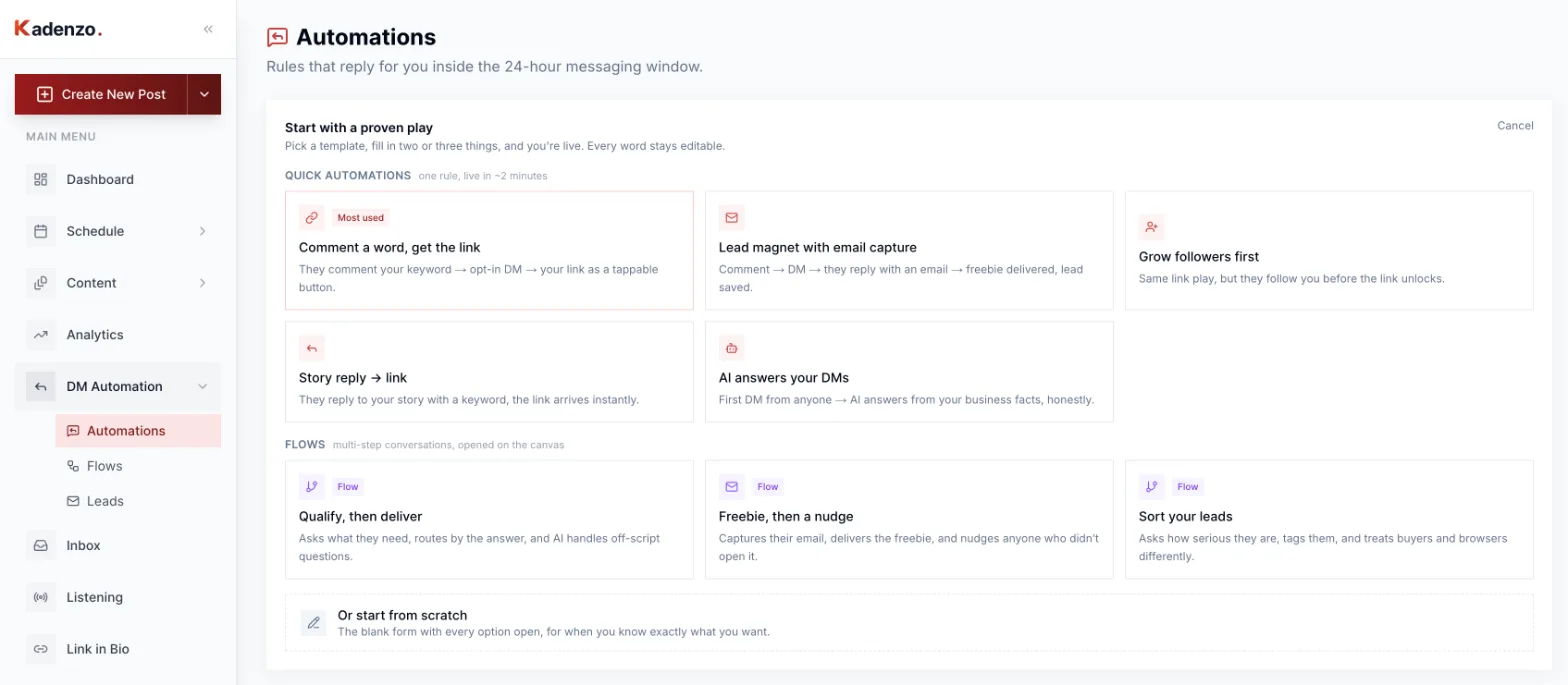
1. Pick a play. Go to DM Automation → Automations and click New automation. A gallery of templates opens. "Comment a word, get the link" is the one this guide builds; "Lead magnet with email capture" adds an email step and "Grow followers first" asks for a follow before the link unlocks.
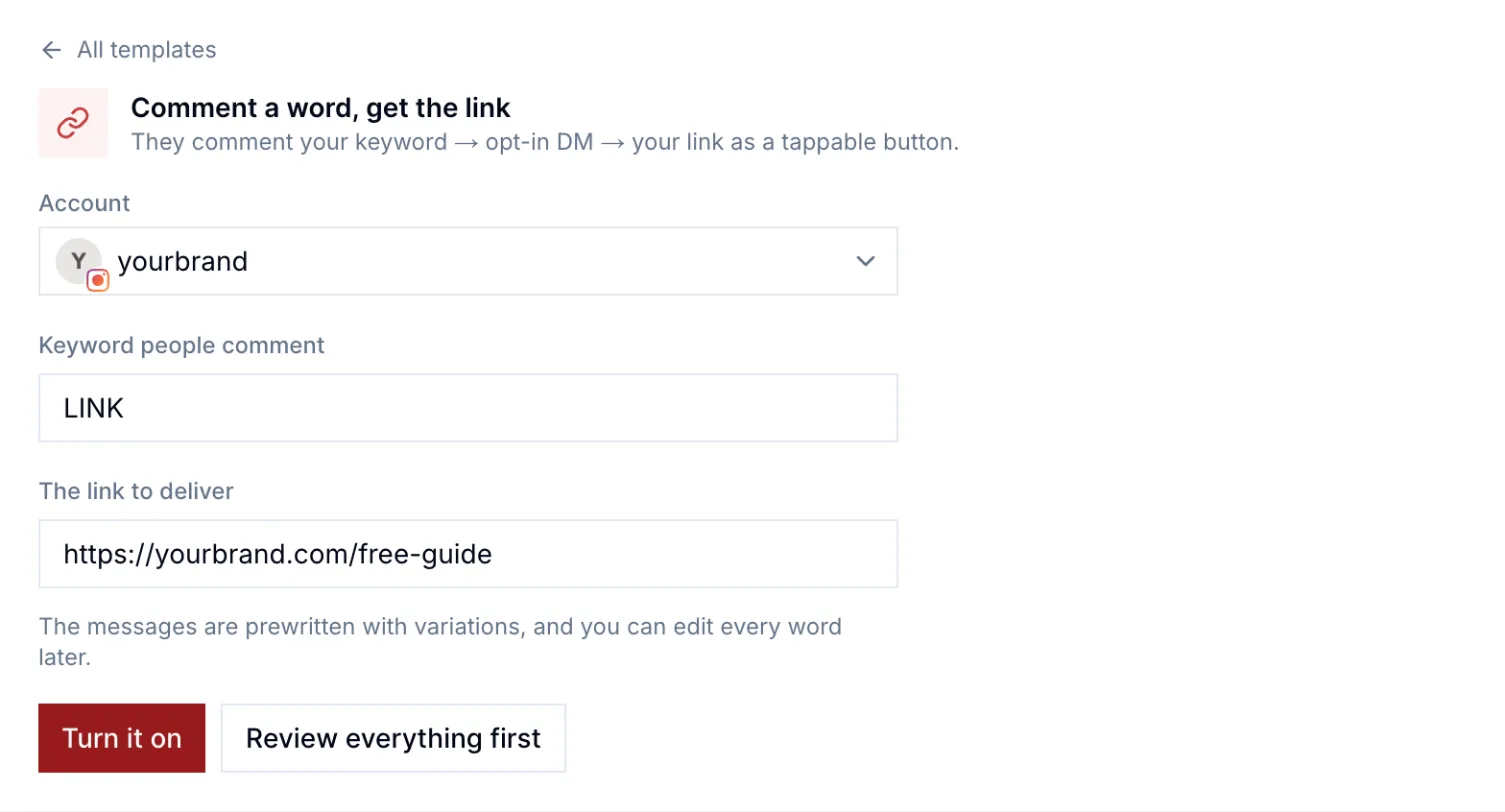
2. Fill in three things. Choose the Instagram account, the keyword people will comment, and the link to deliver. The messages are prewritten, so Turn it on goes live immediately. Click Review everything first if you want to read every message before anything goes out, which is what we'd do the first time.
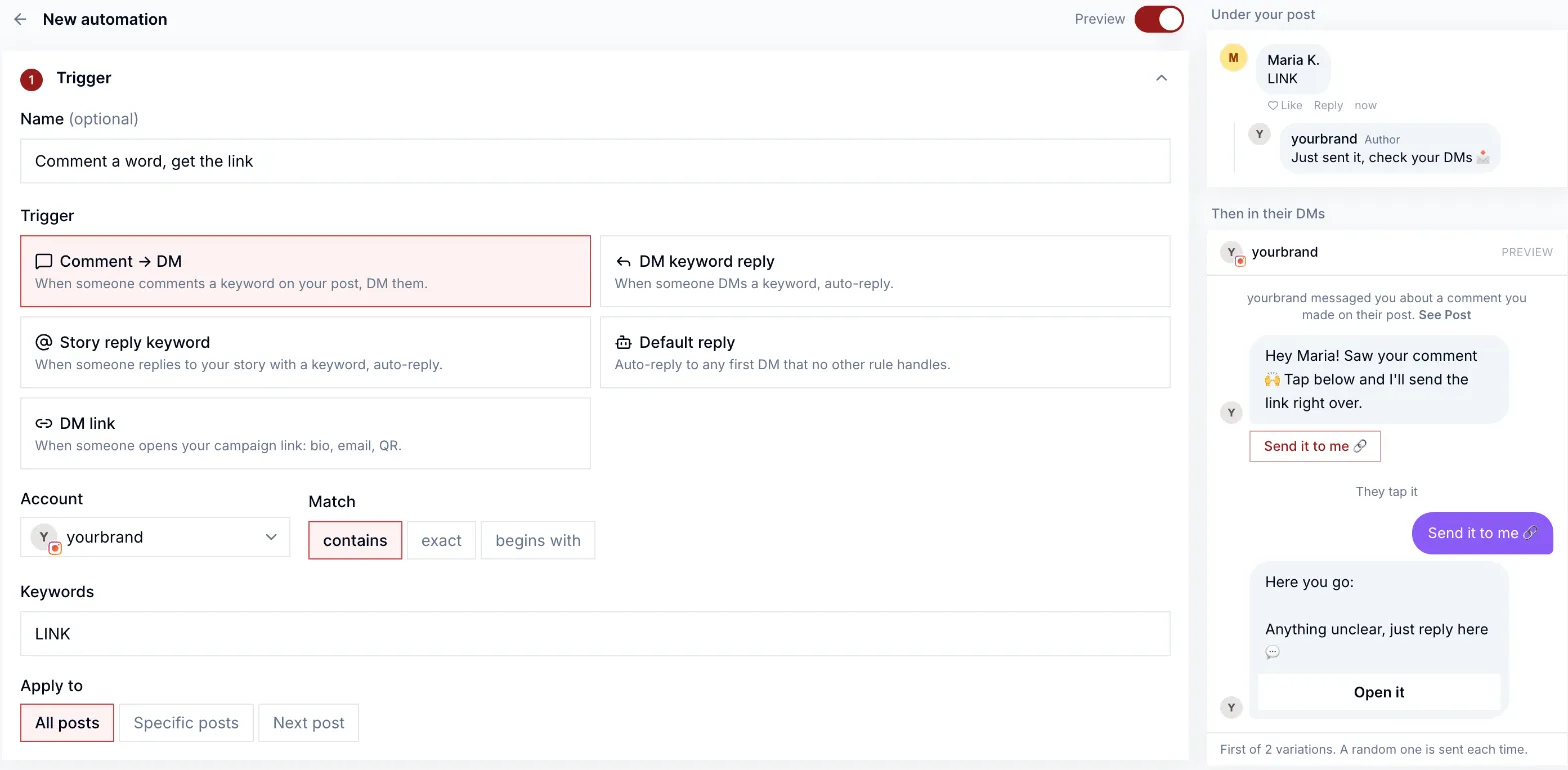
3. Check the trigger. The editor opens on Trigger with Comment → DM selected. Three settings matter here:
- Match: contains catches "LINK please" and "link 🙏"; exact only fires on the word alone. Contains is the forgiving default.
- Keywords: add the misspellings and the lowercase version people will actually type.
- Apply to: All posts, Specific posts, or Next post. Next post is the clean option for a launch: the automation attaches to whatever you publish next, so old posts don't start firing.
The preview on the right updates as you type, showing the public comment reply and the DM conversation exactly as the person will see them.
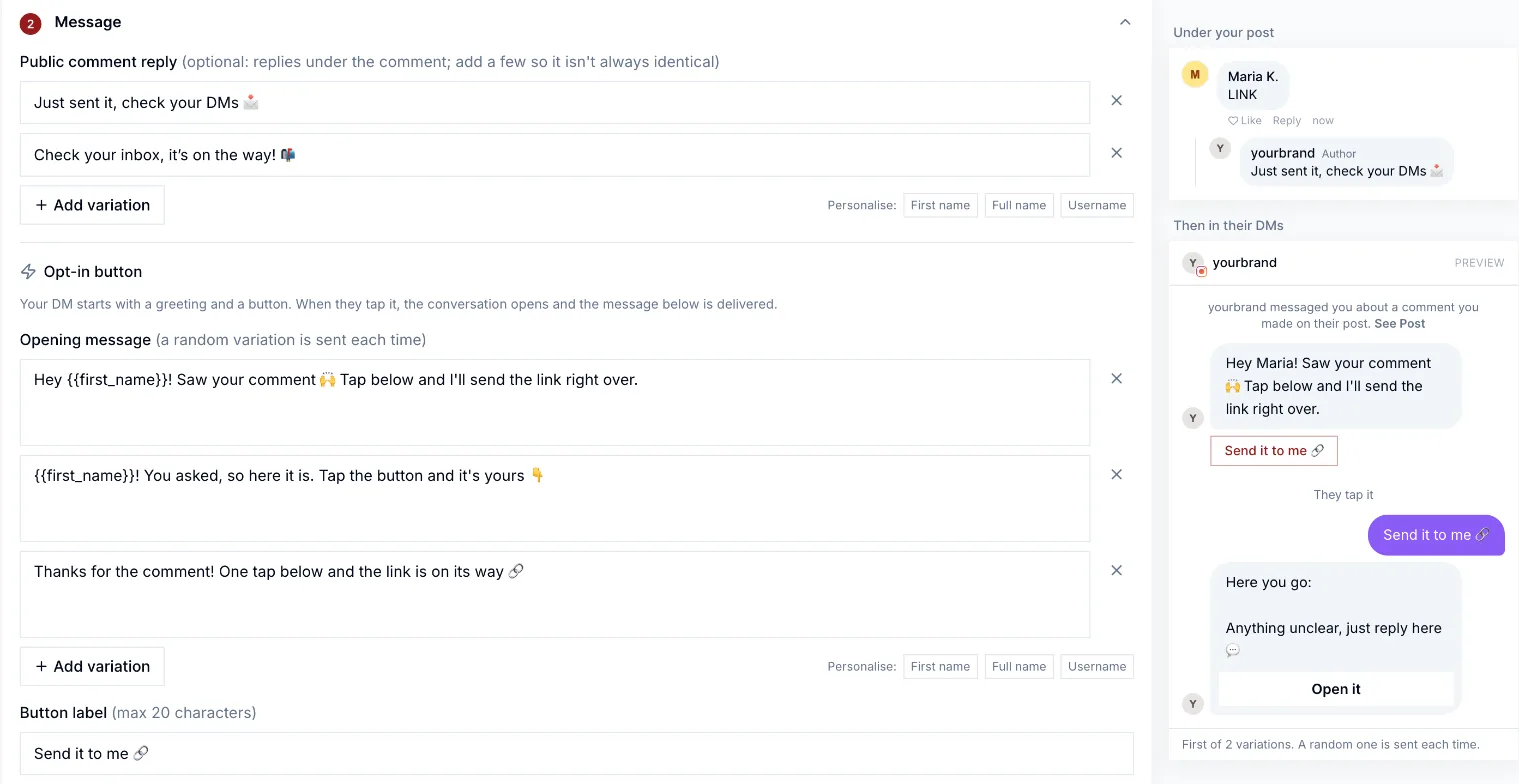
4. Write the messages. Under Message there are three parts:
- Public comment reply: what appears under their comment ("Just sent it, check your DMs"). Add two or three variations so your comment section doesn't fill with identical replies, which looks like a bot and reads as spam.
- Opening message and Button label: the opener described above, with the button (20 characters max). Personalise it with their first name.
- Delivered message: the link itself, sent after the tap. Paste the URL anywhere in the text; Kadenzo turns it into a button and counts clicks.
5. Decide whether to ask for something first. Between the tap and the link you can ask for Their email (saved as a lead and optionally sent to your email tool) or A follow. Leave it on Nothing unless the thing you're giving away is worth the extra step; every gate loses some people.
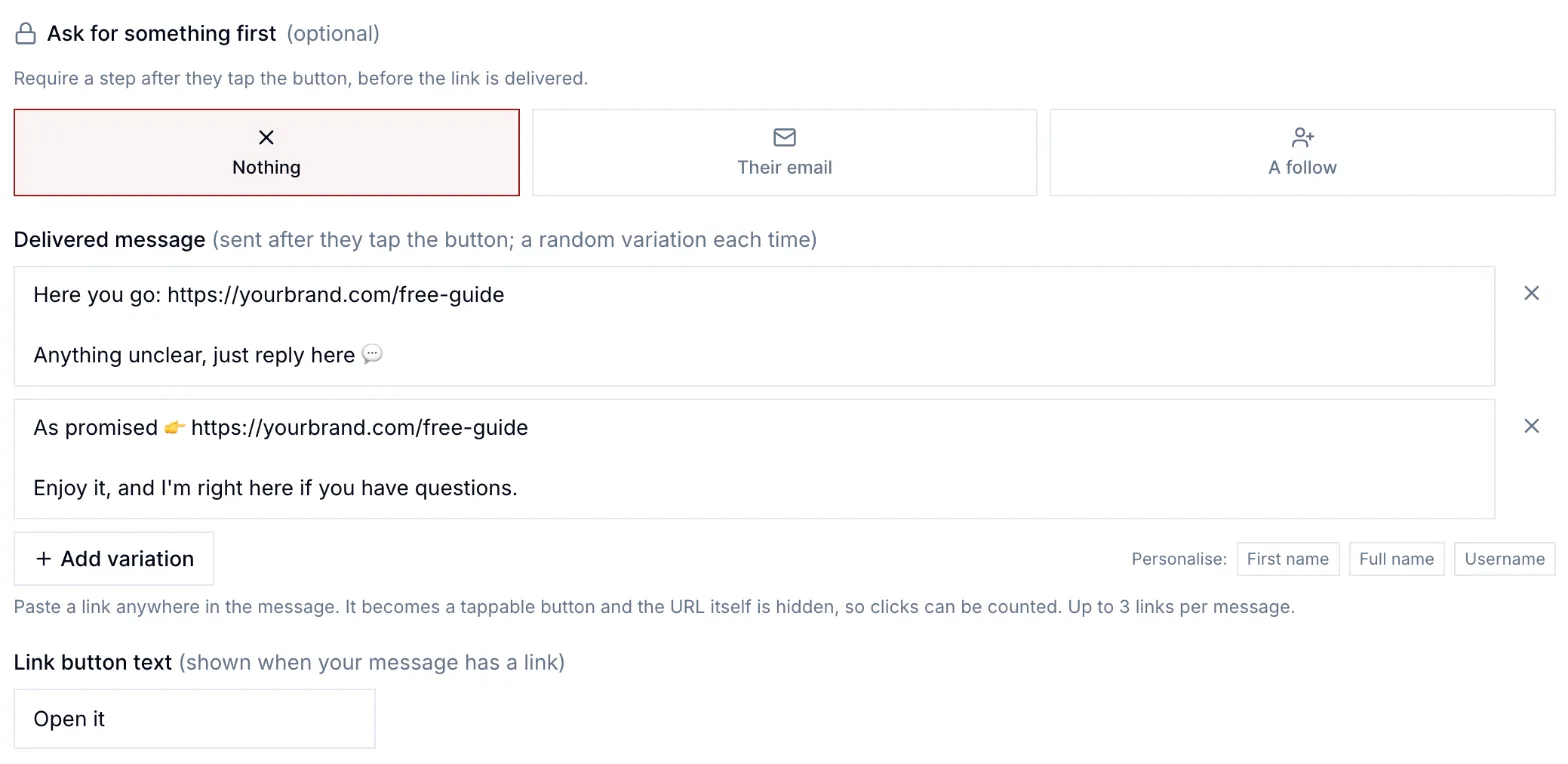
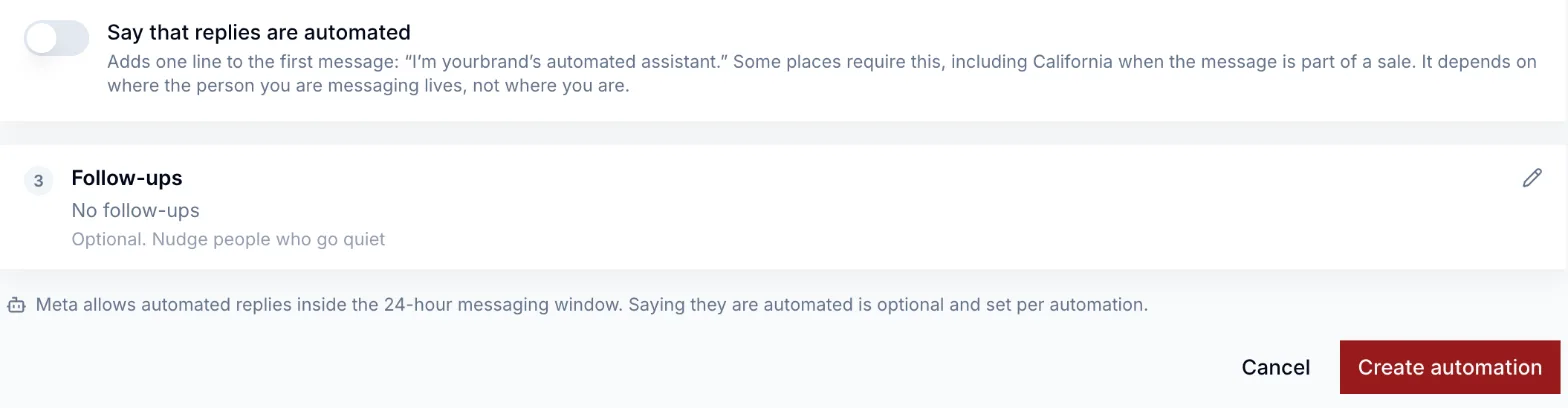
6. Label it and create it. Say that replies are automated adds one line to the first message ("I'm yourbrand's automated assistant"). It's off by default, but some places require it when a message is part of a sale, so turn it on if you sell anything. Follow-ups can nudge people who didn't tap, up to five messages, each with a condition like "only if they haven't clicked the link." Then click Create automation.
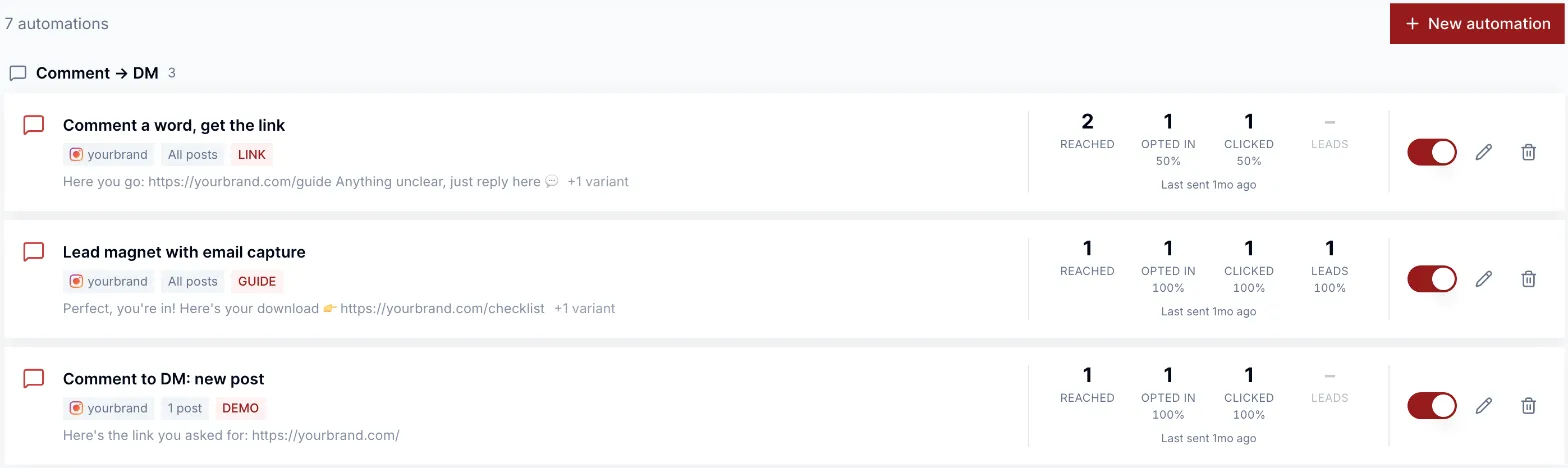
7. Read the numbers. Every automation on the list shows Reached, Opted in, Clicked, and Leads. The gap between reached and opted in tells you whether the opener works; the gap between opted in and clicked tells you whether the link is worth the tap.
The other triggers
The same editor handles four more triggers:
- DM keyword reply: someone sends you a word ("PRICE"), they get the answer.
- Story reply keyword: someone replies to a story with a word, they get the link. Good for time-limited offers.
- Default reply: answers any first DM no other rule handles, at most once every 24 hours per person, so regulars don't get the same greeting twice.
- DM link: a link you put in your bio, an email, or a QR code that opens a DM conversation with the automation already running.
The rules Meta actually enforces
A lot of what's written about Instagram DM limits is folklore. These are the rules in Meta's own documentation:
- The 24-hour window. An automated message can only go to someone who messaged you, commented, or tapped a button in the last 24 hours (Meta's messaging API docs). You can't automate a message to someone who went quiet three days ago.
- One private reply per comment, within seven days. That's the rule the button exists to work with.
- Rate limits are generous. Meta publishes a limit of 750 private replies per hour on posts and reels, per account. Claims that Instagram "cut DMs to 200 an hour" aren't in Meta's documentation; that figure is a pacing setting some tools chose. If a post goes viral and you hit a real limit, a decent tool pauses and resumes on its own rather than failing silently.
- No cold DMs. You can't automate messages to people who never contacted you. Any tool that promises to DM your followers or a competitor's audience is breaking the rules, and that's what gets accounts restricted.
None of this requires a Facebook Page anymore: tools that connect through Instagram's own login only need a professional account.
Copy-paste auto reply scripts
Write these in your own voice; the structure is what matters.
Instant reply (first message):
Thanks for the message. I read every DM myself and usually reply within a day. If it's about an order, the tracking link is in your confirmation email.
Public comment reply (comment-to-DM):
Sent it to your DMs. If it's not there, check your message requests.
Opening message with button:
Hey [first name], here's the guide you asked for. Tap below and it's yours.
Delivered message:
Here you go: [link]. Reply here if anything's unclear, a real person reads these.
The message-requests line matters more than it looks. If the person doesn't follow you, Meta delivers your DM to their requests folder, not their main inbox, and many people never look there.
What to keep human
Automate deliveries, not conversations. Someone who comments "LINK" asked for a link, and sending it instantly is better service than sending it six hours later by hand. Someone who DMs "my order never arrived" is asking for a person, and an automated reply to that lands badly in a way that gets screenshotted. Set your keyword rules narrowly, keep the default reply to setting expectations, and read the inbox yourself. We go deeper on that line in what not to automate on social media, and on handling the replies that do need you in comment moderation.
The keyword in your caption is a call to action like any other: "Comment GUIDE and I'll send it" outperforms a vague "link in bio" because it asks for one easy thing and promises one specific result.
Frequently asked questions
How do I turn on auto reply on Instagram?
Switch to a professional account first, since personal accounts don't get any auto reply features. Then pick the type you need: FAQs in the Messages tools menu for first-time chats, instant reply or away messages in Meta Business Suite's inbox automations, or a tool on Meta's official API if you want people who comment a keyword to get a DM.
Why can't I find auto reply on Instagram?
Usually because the account is personal. Auto reply features only appear on Creator and Business accounts. If you already have a professional account, the feature you're after may live in Meta Business Suite rather than the app, or, for AI auto replies, may not have rolled out to your account yet.
Can Instagram automatically DM people who comment on my post?
Not on its own. Comment-to-DM needs a tool connected through Meta's official messaging API. Meta allows one private reply per comment within seven days, so good tools send a short message with a button first, and deliver the link after the person taps it.
Will auto replies get my Instagram account banned?
Not if they run through Meta's official API and only message people who contacted you first. The risk comes from tools that log in with your password, send cold DMs to people who never messaged you, or blast identical messages at volume. Rotate your wording and keep automation to replies people asked for.
How many automated DMs can I send on Instagram?
Meta documents a limit of 750 private replies to comments per hour per account, and higher limits for regular messages. The often-quoted 200 per hour isn't in Meta's documentation. The rule that limits you in practice is the 24-hour window: you can only message people who interacted with you in the last day.